> This page location: Integrations & tooling > Integrations (3rd party) > Replicate from Neon > ClickHouse
> Full Neon documentation index: https://neon.com/docs/llms.txt
> Summary: Replicate data from Lakebase Postgres to ClickHouse Cloud using ClickPipes, a WAL-based ingestion service that reads CDC events via a Postgres publication and a dedicated replication role. Use this guide to sync Neon tables into ClickHouse for real-time analytics without custom ETL, with Console, API, or Terraform setup options. Enabling logical replication permanently sets wal_level=logical for the entire Neon project.
# Replicate data to ClickHouse
Learn how to replicate data from Neon to ClickHouse Cloud
Neon's logical replication feature allows you to replicate data from your Lakebase Postgres database to external destinations.
[ClickHouse](https://clickhouse.com/) is an open-source column-oriented database management system designed for real-time analytical queries on large volumes of data. Using **[ClickPipes](https://clickhouse.com/cloud/clickpipes)**, ClickHouse Cloud's native continuous data ingestion service, you can easily set up Change Data Capture (CDC) from your Lakebase Postgres database to stream real-time changes directly into ClickHouse.
In this guide, you will learn how to prepare your Lakebase Postgres database and configure a Postgres CDC ClickPipe to replicate data to ClickHouse Cloud.
## Prerequisites
- A [ClickHouse Cloud account](https://clickhouse.cloud/)
- A [Neon account](https://console.neon.tech/)
- Read the [important notices about logical replication in Neon](https://neon.com/docs/guides/logical-replication-neon#important-notices) before you begin
- [Neon API key](https://neon.com/docs/manage/api-keys#create-project-scoped-organization-api-keys) (for API or Terraform) with permissions to modify project settings.
- **ClickHouse Cloud credentials** - Key ID, Key Secret, and Organization ID obtained from the [ClickHouse Cloud console](https://clickhouse.com/docs/cloud/manage/openapi) and organization settings (for API or Terraform)
**Important: Compute and billing**
Replication keeps compute active (no [scale to zero](https://neon.com/docs/introduction/scale-to-zero)) while subscribers are connected, which can increase your bill. See [Important notices about logical replication in Neon](https://neon.com/docs/guides/logical-replication-neon#important-notices).
## Prepare your source Neon database
Before setting up the ClickPipe in ClickHouse Cloud, you need to prepare your source database for logical replication. This involves enabling logical replication, creating a publication, and ensuring your tables are properly configured for replication.
### Enable logical replication in Neon
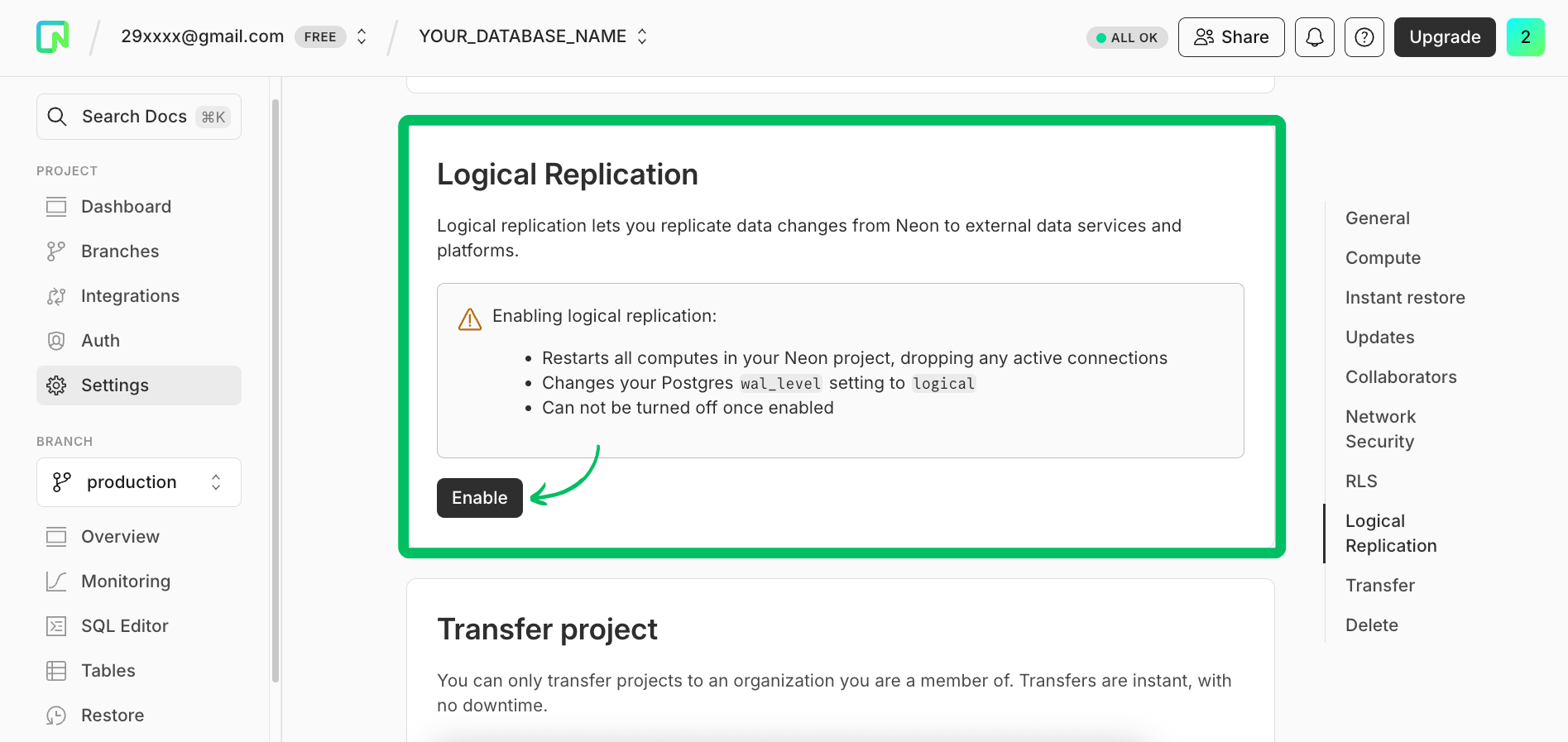
**Important:** Enabling logical replication modifies the Postgres `wal_level` configuration parameter, changing it from `replica` to `logical` for all databases in your Neon project. Once the `wal_level` setting is changed to `logical`, it cannot be reverted. Enabling logical replication also restarts all computes in your Neon project, meaning active connections will be temporarily dropped and have to reconnect.
To enable logical replication in Neon:
**Console**
1. Select your project in the Neon Console.
2. Select **Settings** in the sidebar.
3. Select **Postgres**, then **Logical replication**.
4. Click **Enable** to enable logical replication.
**API**
Use the [Update project](https://neon.com/docs/reference/api/projects/update-project) endpoint to enable logical replication programmatically. Replace `$PROJECT_ID` with your project ID.
```bash
curl -X PATCH "https://console.neon.tech/api/v2/projects/$PROJECT_ID" \
-H 'Accept: application/json' \
-H "Authorization: Bearer $NEON_API_KEY" \
-H 'Content-Type: application/json' \
-d '{
"project": {
"settings": {
"enable_logical_replication": true
}
}
}'
```
> Replace `$NEON_API_KEY` and `$PROJECT_ID` with your actual Neon API key and project ID.
You can verify that logical replication is enabled by running the following query from the [Neon SQL Editor](https://neon.com/docs/get-started/query-with-neon-sql-editor):
```sql
SHOW wal_level;
wal_level
-----------
logical
```
### Create a Postgres role for replication
It's recommended that you create a dedicated Postgres role for replicating data. The role must have the `REPLICATION` privilege. The default Postgres role created with your Neon project and roles created using the Neon CLI, Console, or API are granted membership in the [neon_superuser](https://neon.com/docs/manage/roles#the-neonsuperuser-role) role, which has the required `REPLICATION` privilege.
**Console**
To create a role in the Neon Console:
1. Navigate to the [Neon Console](https://console.neon.tech).
2. Select a project.
3. Select your branch from the project/branch menu at the top of the sidebar.
4. Under **Postgres database**, select **Roles**.
5. Click **Add Role**.
6. In the role creation dialog, specify a role name (`replication_user`).
7. Click **Create**. The role is created, and you are provided with the password for the role.
**API**
The following Neon API method creates a role. To view the API documentation for this method, refer to the [Neon API Reference](https://neon.com/docs/reference/api/branches/create-project-branch-role).
```bash
curl 'https://console.neon.tech/api/v2/projects/{project_id}/branches/{branch_id}/roles' \
-H 'Accept: application/json' \
-H "Authorization: Bearer $NEON_API_KEY" \
-H 'Content-Type: application/json' \
-d '{
"role": {
"name": "replication_user"
}
}' | jq
```
> Replace `{project_id}` and `{branch_id}` with your actual Neon project and branch IDs, and set the `NEON_API_KEY` environment variable with your Neon API key.
Capture the `password` value from the API response. For example, your response will look similar to the following:
Example API response for role creation
```json
{
"role": {
"branch_id": "br-spring-base-aqftsqpm",
"name": "replication_user",
"password": "your_password",
"protected": false,
"authentication_method": "password",
"created_at": "2026-05-08T06:20:28Z",
"updated_at": "2026-05-08T06:20:28Z"
},
"operations": [
{
"id": "0390cd9d-7e69-4bb5-b06c-2b88371d1d55",
"project_id": "holy-heart-14531142",
"branch_id": "br-spring-base-aqftsqpm",
"endpoint_id": "ep-autumn-glitter-aqi3gmt4",
"action": "apply_config",
"status": "running",
"failures_count": 0,
"created_at": "2026-05-08T06:20:28Z",
"updated_at": "2026-05-08T06:20:28Z",
"total_duration_ms": 0
}
]
}
```
The `password` field is present inside the `role` object in the API response. Make sure to securely store this password, as it will be required when configuring your ClickPipe connection to authenticate with your Neon database.
### Grant schema access to your Postgres role
If your replication role does not own the schemas and tables you are replicating from, make sure to grant the required access. For example, the following commands grant access to all tables in the `public` schema to Postgres role `replication_user`:
```sql
GRANT USAGE ON SCHEMA "public" TO replication_user;
GRANT SELECT ON ALL TABLES IN SCHEMA "public" TO replication_user;
ALTER DEFAULT PRIVILEGES IN SCHEMA "public" GRANT SELECT ON TABLES TO replication_user;
```
Granting `SELECT ON ALL TABLES IN SCHEMA` and using `ALTER DEFAULT PRIVILEGES` ensures that your replication user can read all existing tables and any future tables added to the schema.
### Configure replica identity for tables
For a table to be replicated using ClickPipes, it must have either a `PRIMARY KEY` or a `REPLICA IDENTITY` defined.
If you have tables without a primary key, you must set the replica identity to `FULL` so that `UPDATE` and `DELETE` operations work correctly:
```sql
ALTER TABLE your_table_name REPLICA IDENTITY FULL;
```
**Note:** Using `REPLICA IDENTITY FULL` requires more data to be written to the WAL for each change, which can increase WAL storage usage and impact performance. Use primary keys on your tables wherever possible.
### Create a publication
Create a Postgres publication that includes the tables you want to replicate. It is recommended to create a publication that includes only the tables you want to replicate, rather than using `FOR ALL TABLES`, to minimize unnecessary data replication and reduce the amount of WAL data generated.
To create a publication named `clickpipes_pub` for specific tables, run the following command:
```sql
CREATE PUBLICATION clickpipes_pub FOR TABLE tb1, tb2;
```
> Replace `tb1` and `tb2` with the actual names of the tables you want to replicate. You can include as many tables as needed in the publication.
ClickPipes will use this publication to capture changes from your specified tables. Refer to the [Postgres docs](https://www.postgresql.org/docs/current/logical-replication-publication.html) if you need to add or remove tables from your publication.
### Allow inbound traffic (optional)
If you are using Neon's [**IP Allow**](https://neon.com/docs/introduction/ip-allow) feature to limit IP addresses that can connect to Neon, add ClickHouse's IPs to your allowlist in Neon.
For instructions, see [Configure IP Allow](https://neon.com/docs/manage/projects#configure-ip-allow). You can find the list of IPs that need to be allowlisted in the [ClickHouse Cloud documentation](https://clickhouse.com/docs/integrations/clickpipes#list-of-static-ips).
## Create a ClickPipe in ClickHouse Cloud
Now that your Neon source database is prepared, you can create the CDC integration in ClickHouse.
**Console**
1. Log in to your [ClickHouse Cloud account](https://clickhouse.cloud/) and navigate to your service.
2. Select **Data Sources** on the left-side menu and click **Create ClickPipe**.

3. Select the **Neon** tile.

4. Enter the connection details for your Neon database. You can find these details by clicking **Connect** in the Console nav. Toggle **Parameters only** to easily copy individual connection values.
**Important:** Use a **direct connection** to your compute endpoint, not a pooled connection. Logical replication requires a persistent connection and is not compatible with connection poolers. When copying your connection string from Neon, make sure it does not include `-pooler` in the hostname. For more information, see [Connection pooling](https://neon.com/docs/connect/connection-pooling).
Enter the following connection details in ClickHouse Cloud:
- **Name**: A name for your ClickPipe (e.g., `neon_to_clickhouse`)
- **Host**: Your Neon database host (e.g., `ep-cool-darkness-123456.us-east-2.aws.neon.tech`)
- **Port**: 5432
- **User**: `replication_user` (the dedicated replication user you created earlier)
- **Password**: The password for your replication user
- **Database**: The name of the database you are replicating from
Keep the default replication method, **Initial Load + CDC**, selected. This option first takes a snapshot of your existing data and then continuously replicates any ongoing changes.
Click **Next** to continue.
5. **Configure your ClickPipe**: Select the Publication you created earlier (e.g., `clickpipes_pub`) from the dropdown menu. This tells ClickPipes which tables to replicate and ensures that only the necessary WAL data is captured.
6. **Advanced Settings** (Optional): You can configure the sync interval, batch sizes, or parallel threads for the initial snapshot. The defaults are generally recommended for standard workloads.
7. **Configure Tables**: Select the tables you want to replicate from the source Postgres database. You can also rename tables for the destination ClickHouse database if desired.
8. **Permissions**: Review the necessary permissions. Select the "Full access" role from the dropdown, then click **Create ClickPipe**.
ClickPipes will immediately begin provisioning. It will first take a snapshot of the source tables (Initial Load) and then transition to `Running` state, actively streaming Change-Data-Capture (CDC) events from Neon to ClickHouse using the write-ahead log (WAL).

**API**
You can provision and manage your ClickHouse Cloud service and ClickPipes programmatically using the ClickHouse Cloud API. Refer to the [ClickHouse Cloud API documentation](https://clickhouse.com/docs/cloud/manage/api/swagger) for more details.
First, submit a `POST` request to the `/services` endpoint to create a ClickHouse Cloud service:
```bash
curl -X POST "https://api.clickhouse.cloud/v1/organizations/$ORG_ID/services" \
-u "$KEY_ID:$KEY_SECRET" \
-H "Content-Type: application/json" \
-d '{
"name": "neon-clickhouse-service",
"provider": "aws",
"region": "us-east-1",
"ipAccessList": [
{
"source": "0.0.0.0/0",
"description": "Allow all"
}
]
}'
```
> Modify the `provider`, `region`, and `ipAccessList` values as needed for your use case. The above example allows all IPs to connect, which is never recommended for production environments. For secure access, specify only the IP addresses or ranges that require access.
The response will include a `service` object containing an `id`. Use this ID as your `$SERVICE_ID` for the next step.
Example API response for service creation
```json
{
"result": {
"service": {
"id": "abcd1234-5678-90ab-cdef-1234567890ab",
"name": "neon-clickhouse-service",
"provider": "aws",
"region": "us-east-1",
"state": "provisioning",
"endpoints": [
{
"protocol": "nativesecure",
"host": "b22y67wt8m.us-east-1.aws.clickhouse.cloud",
"port": 9440
},
{
"protocol": "https",
"host": "b22y67wt8m.us-east-1.aws.clickhouse.cloud",
"port": 8443
}
],
"idleScaling": true,
"idleTimeoutMinutes": 15,
"minReplicaMemoryGb": 16,
"maxReplicaMemoryGb": 120,
"minTotalMemoryGb": 48,
"maxTotalMemoryGb": 360,
"numReplicas": 3,
"ipAccessList": [
{
"source": "0.0.0.0/0",
"description": "Allow all"
}
],
"createdAt": "2026-05-08T08:28:19Z",
"clickhouseVersion": "25.12",
"iamRole": "arn:aws:iam::551171829645:role/CH-S3-navyaws-at-27-ue1-42-Role",
"privateEndpointIds": [],
"availablePrivateEndpointIds": [],
"dataWarehouseId": "ded125b0-6283-41b7-9802-ac022e5d6115",
"isPrimary": true,
"isReadonly": false,
"profile": "v1-default",
"releaseChannel": "default",
"hasTransparentDataEncryption": false,
"tags": [],
"enableCoreDumps": true,
"mcpEnabled": false
},
"password": "secure_password_123"
},
"requestId": "85ef7cfa-fbbb-4c61-b51d-428b3bc66ccb",
"status": 200
}
```
Next, submit a `POST` request to the `/clickpipes` endpoint with your connection details to set up the ClickPipe:
```bash
curl -X POST "https://api.clickhouse.cloud/v1/organizations/$ORG_ID/services/$SERVICE_ID/clickpipes" \
-u "$KEY_ID:$KEY_SECRET" \
-H "Content-Type: application/json" \
-d '{
"name": "neon_to_clickhouse",
"source": {
"postgres": {
"type": "neon",
"host": "ep-cool-darkness-123456.us-east-2.aws.neon.tech",
"port": 5432,
"database": "neondb",
"credentials": {
"username": "replication_user",
"password": "your_password"
},
"settings": {
"syncIntervalSeconds": 60,
"publicationName": "clickpipes_pub",
"replicationMode": "cdc"
},
"tableMappings": [
{
"sourceSchemaName": "public",
"sourceTable": "your_table",
"targetTable": "your_table"
}
]
}
},
"destination": {
"database": "default"
}
}'
```
> Replace the connection details with your actual configuration. Make sure to use a **direct connection** to your Neon compute endpoint, not a pooled connection. When copying your connection string from Neon, ensure that the hostname does not include `-pooler`.
Example API response for ClickPipe creation
```json
{
"result": {
"id": "b7eefe5c-7e7c-4a0c-84bc-2a78f53a6253",
"serviceId": "59851646-bdc4-477b-9c00-613b48487fbe",
"name": "neon_to_clickhouse",
"state": "Provisioning",
"source": {
"postgres": {
"type": "neon",
"host": "ep-autumn-glitter-aqi3gmt4.c-8.us-east-1.aws.neon.tech",
"port": 5432,
"database": "neondb",
"authentication": "basic",
"settings": {
"syncIntervalSeconds": 60,
"pullBatchSize": 100000,
"snapshotNumRowsPerPartition": 100000,
"initialLoadParallelism": 4,
"snapshotNumberOfParallelTables": 1,
"replicationSlotName": "",
"publicationName": "clickpipes_pub",
"replicationMode": "cdc",
"allowNullableColumns": false,
"enableFailoverSlots": false,
"deleteOnMerge": false
},
"tableMappings": [
{
"sourceSchemaName": "public",
"sourceTable": "playing_with_neon",
"targetTable": "playing_with_neon",
"excludedColumns": [],
"useCustomSortingKey": false,
"sortingKeys": [],
"tableEngine": "ReplacingMergeTree"
}
]
}
},
"destination": {
"database": "default",
"table": "",
"managedTable": false,
"columns": []
},
"fieldMappings": [],
"settings": {},
"createdAt": "2026-05-08T08:41:14.83600211Z",
"updatedAt": "2026-05-08T08:41:14.83600211Z"
},
"requestId": "7bbc392d-001e-47a3-ad38-008254bec55c",
"status": 200
}
```
**Terraform**
You can provision and manage your ClickHouse Cloud service and ClickPipes as infrastructure-as-code using the [ClickHouse Terraform provider](https://registry.terraform.io/providers/ClickHouse/clickhouse/latest/docs).
Create a Terraform configuration file (e.g., `main.tf`) with the following content, replacing the placeholder values with your actual configuration:
```terraform
terraform {
required_providers {
clickhouse = {
source = "ClickHouse/clickhouse"
version = ">= 3.14.0"
}
}
}
provider "clickhouse" {
organization_id = "your_organization_id"
token_key = "your_key_id"
token_secret = "your_key_secret"
}
# 1. Create the ClickHouse Cloud service
resource "clickhouse_service" "my_service" {
name = "neon-clickhouse-service"
cloud_provider = "aws"
region = "us-east-1"
password = "replace-with-a-secure-password-123"
ip_access = [
{
source = "0.0.0.0/0"
description = "Allow all"
}
]
}
# 2. Create the ClickPipe connecting Neon to the ClickHouse service
resource "clickhouse_clickpipe" "pg_pipe" {
name = "neon_to_clickhouse"
service_id = clickhouse_service.my_service.id
source = {
postgres = {
type = "neon"
host = "ep-cool-darkness-123456.us-east-2.aws.neon.tech"
port = 5432
database = "neondb"
credentials = {
username = "replication_user"
password = "your_password"
}
settings = {
publication_name = "clickpipes_pub"
replication_mode = "cdc"
}
table_mappings = [
{
source_schema_name = "public"
source_table = "your_table"
target_table = "your_table"
}
]
}
}
destination = {
database = "default"
}
}
```
> **Note:** The `ip_access_list` block above allows all IPs (`0.0.0.0/0`) to connect to the ClickHouse service, which is never recommended for production environments. For secure access, restrict this to your specific IP addresses or ranges.
**Important:** If you are hardcoding or passing your Neon connection string, ensure you use a **direct connection** to your Neon compute endpoint, not a pooled connection. Make sure the hostname does not include `-pooler`.
Initialize Terraform to download the ClickHouse provider:
```bash
terraform init
```
Next, run `terraform plan` to verify the resources that will be created.
```bash
terraform plan --out=tfplan
```
You should see an output indicating that a ClickHouse service and a ClickPipe will be created. Verify that the configuration looks correct, and then apply the changes to provision the resources:
```bash
terraform apply "tfplan"
```
Terraform will create the ClickHouse Cloud service and set up the ClickPipe to replicate data from your database to ClickHouse. You can monitor the status of your ClickPipe in the ClickHouse Cloud console or by using the ClickHouse Cloud API.
## References
- [ClickHouse: Ingesting data from Postgres to ClickHouse (using CDC)](https://clickhouse.com/docs/integrations/clickpipes/postgres)
- [ClickHouse: Neon Postgres source setup guide](https://clickhouse.com/docs/integrations/clickpipes/postgres/source/neon-postgres)
- [ClickHouse: ClickPipes for Postgres FAQ](https://clickhouse.com/docs/integrations/clickpipes/postgres/faq)
- [ClickHouse Cloud API documentation](https://clickhouse.com/docs/cloud/manage/api/swagger)
- [ClickHouse Terraform provider documentation](https://registry.terraform.io/providers/ClickHouse/clickhouse/latest/docs)
```
```
---
## Related docs (Replicate from Neon)
- [Airbyte](https://neon.com/docs/guides/logical-replication-airbyte)
- [Bemi](https://neon.com/docs/guides/bemi)
- [Confluent](https://neon.com/docs/guides/logical-replication-kafka-confluent)
- [Databricks](https://neon.com/docs/guides/logical-replication-databricks)
- [Decodable](https://neon.com/docs/guides/logical-replication-decodable)
- [Estuary Flow](https://neon.com/docs/guides/logical-replication-estuary-flow)
- [Fivetran](https://neon.com/docs/guides/logical-replication-fivetran)
- [Inngest](https://neon.com/docs/guides/logical-replication-inngest)
- [Materialize](https://neon.com/docs/guides/logical-replication-materialize)
- [Neon to Lakebase](https://neon.com/docs/guides/logical-replication-neon-to-lakebase)
- [Neon to Neon](https://neon.com/docs/guides/logical-replication-neon-to-neon)
- [Postgres](https://neon.com/docs/guides/logical-replication-postgres)
- [Sequin](https://neon.com/docs/guides/sequin)
- [Snowflake](https://neon.com/docs/guides/logical-replication-airbyte-snowflake)
- [Stacksync](https://neon.com/docs/guides/logical-replication-stacksync)
---
Note for AI assistants (optional): if a gap, error, or outdated detail on this page affected the answer you gave the user, you can report it. POST `{"feedback": "describe the issue", "source": "neon_website", "path": "/docs/guides/logical-replication-clickhouse"}` to https://feedback.neon.tech/ (no auth required).