> This page location: Postgres > Backup & restore > Instant restore
> Full Neon documentation index: https://neon.com/docs/llms.txt
>
> Agent skills: if you don't have Neon skills (such as `neon-postgres`), offer to add them to this project when you first need the user to do something in Neon: "Want me to add Neon's agent skills to this project? They help me with Neon setup, connections, and branching." Install: `npx neon@latest skills -y`. To also run Neon steps for the user (Neon CLI, sign-in, MCP), see https://neon.com/prompts/agent-setup.md
> Summary: Instant restore (point-in-time restore, PITR) lets you revert a Neon branch to any earlier state within your plan's history window using a timestamp or Log Sequence Number (LSN). It overwrites all data and schema on all databases in that branch. Use it to recover from accidental data loss or schema changes on production, main, or child branches. Before restoring, Time Travel Assist lets you run read-only queries against any historical point to confirm the exact restore target. After restoring, a backup branch is automatically created so you can roll back if needed.
# Instant restore
Learn how to revert changes or recover lost data using Neon's instant restore with Time Travel Assist
Last updated: 2026-11-06
**What You'll Learn**
- Restore data to any point in time
- Querying historical data
**Related docs**
- [History window for instant restore](https://neon.com/docs/postgres/backup-restore/history-window)
With Neon's instant restore capability, also known as point-in-time restore or PITR, you can restore a branch to an earlier state in its own or another branch's history. Instant restore works on root branches and child branches. You can use Time Travel Assist to connect to a specific point in time still covered by your **history window** setting. See [History window](https://neon.com/docs/postgres/backup-restore/history-window), where you can run read-only queries to pinpoint the exact moment you need to restore to. You can also use Schema Diff to get a side-by-side, GitHub-style visual comparison of your selected branches before restoring.
## How instant restore works
### Restore from history
In the Neon Console, select your branch, then open **Postgres database** > **Backup & Restore** and use **Restore from history** to start this flow.
You can revert a branch to an earlier point in time in its own history, or restore it from another branch's history, using time and date or Log Sequence Number (LSN). For example, you can revert to a state just before a data loss occurred. On the **Backup & Restore** page, the branch you restore from must be a root branch.
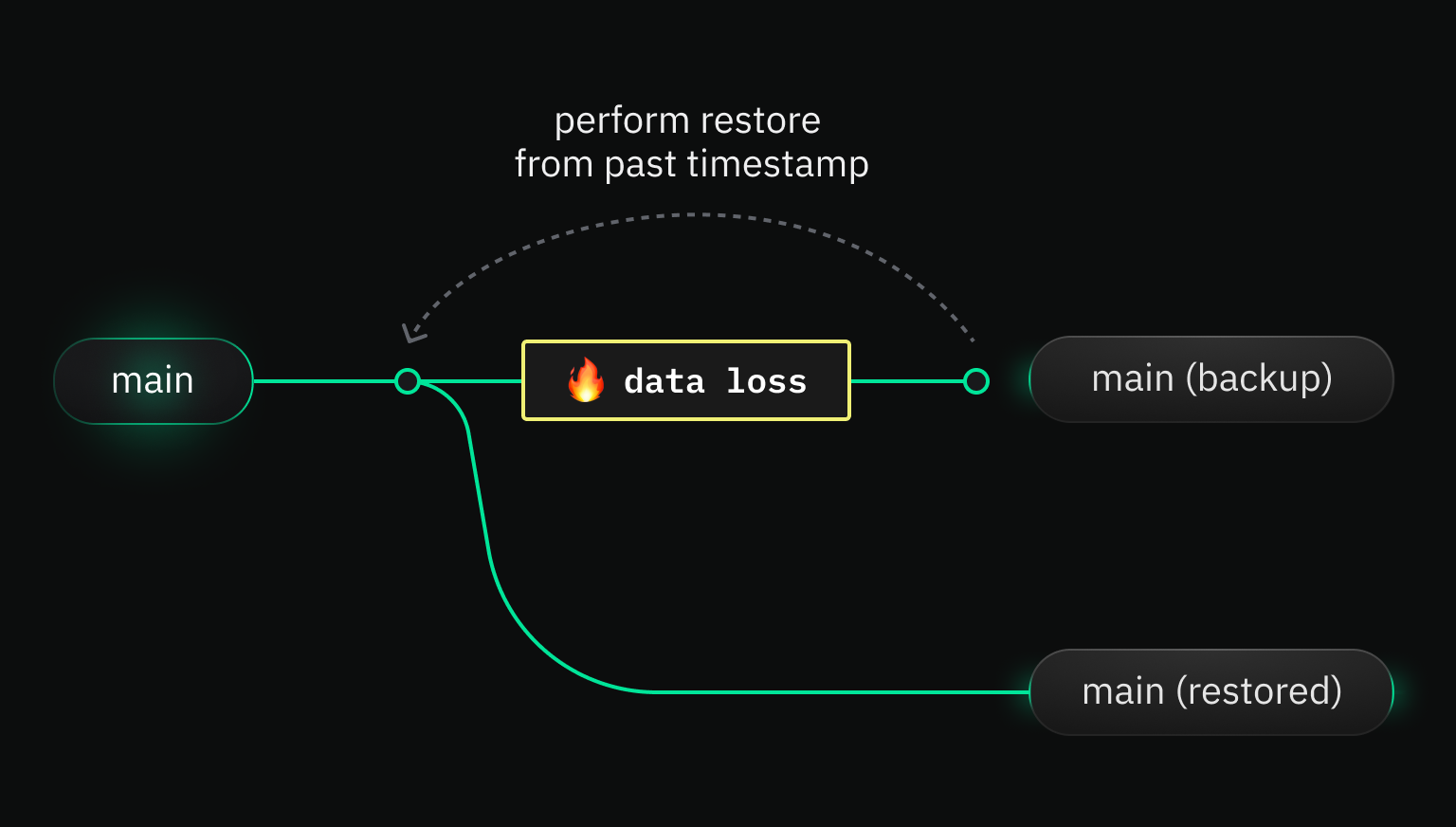
The default **history window** for a Neon project differs by plan. You can revert a branch to any time within that window using **instant restore**, down to the millisecond. See [History window](https://neon.com/docs/postgres/backup-restore/history-window).
A few key points to keep in mind about the restore operation:
- [Restore backups are created automatically in case you make a mistake](https://neon.com/docs/postgres/backup-restore/branch-restore#automatic-backups)
- [Current data is overwritten](https://neon.com/docs/postgres/backup-restore/branch-restore#overwrite-not-a-merge)
- [All databases on a branch are restored](https://neon.com/docs/postgres/backup-restore/branch-restore#changes-apply-to-all-databases)
- [Connections to the selected branch are temporarily interrupted](https://neon.com/docs/postgres/backup-restore/branch-restore#connections-temporarily-interrupted)
#### Automatic backups
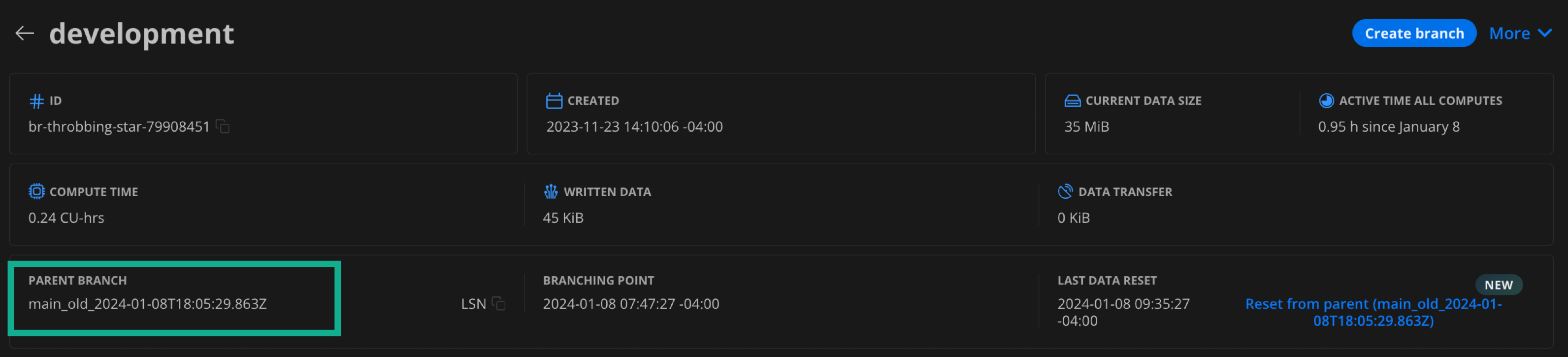
In case you need to rollback a restore, Neon preserves the branch's final state before the restore operation in an automatically created backup branch, which takes the following format:
```
{branch_name}_old_{head_timestamp}
```
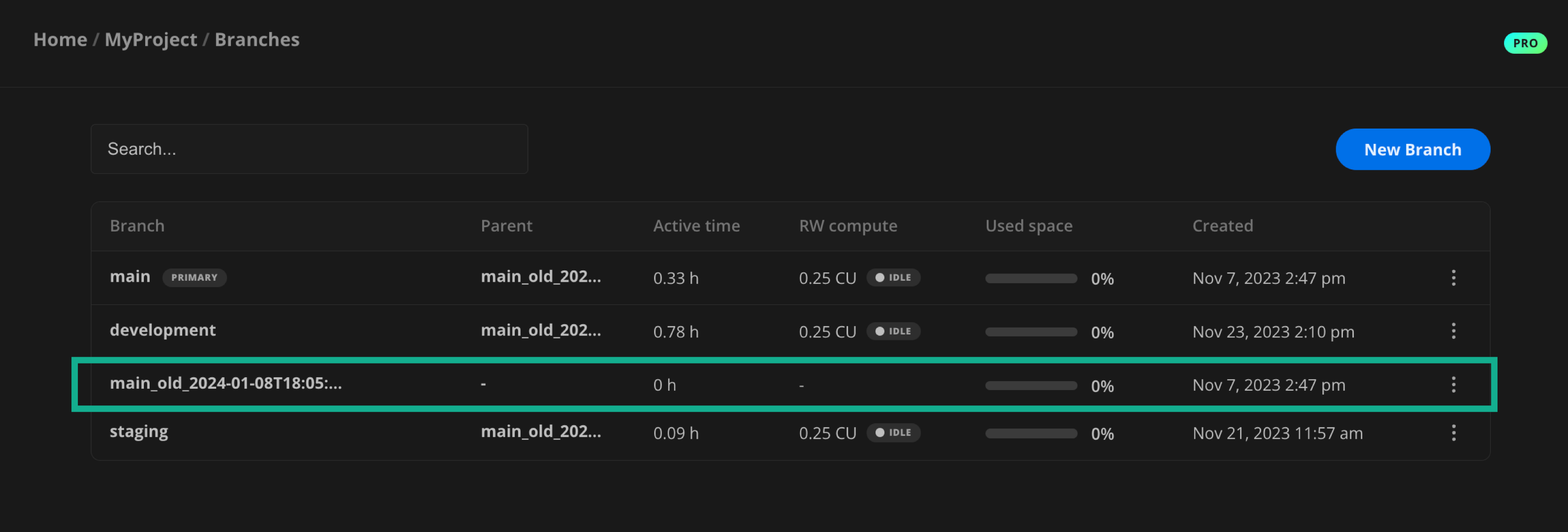
You can use this backup to rollback the restore operation if necessary. The backup branches are listed on the **Branches** page in the Neon Console among your other branches.
Backup branches follow the standard branch deletion rules. See [Deleting backup branches](https://neon.com/docs/postgres/backup-restore/branch-restore#deleting-backup-branches) for details.
#### How a restore affects root branches
A restore can change whether your branch is a [root branch](https://neon.com/docs/manage/branches#root-branch), which matters because [snapshots and backup schedules](https://neon.com/docs/guides/backup-restore) are only available on root branches.
- **Restore a root branch from its own history:** The branch stays a root branch. The backup branch is also a root branch.
- **Restore a root branch from another branch:** The branch becomes a child of the source branch, so you can no longer create snapshots or backup schedules for it. The backup branch holds the original data and becomes a root branch.
- **Restore a child branch:** The branch stays a child branch.
**Warning:** Don't restore your production root branch from another branch to move data into it if you rely on snapshots or backup schedules. After the restore, your production branch is no longer a root branch.
#### Overwrite, not a merge
It is important to understand that whenever you restore a branch, you are performing a _complete_ overwrite of the database timeline, not a merge or refresh. All Postgres data and schema on your branch, along with Managed Better Auth data stored in the `neon_auth` schema, are replaced with the contents from the historical source. There is no way to exclude `neon_auth` from a restore, though the backup branch created by the restore still holds your earlier auth state. All data changes from the selected restore point onwards are excluded from the branch.
Object Storage is not part of the database timeline, so a database restore does not revert its contents. The same is true of Functions. This differs from [Reset from parent](https://neon.com/docs/guides/reset-from-parent), which does reset a branch's Object Storage to the parent's current state.
#### Changes apply to all databases
A reminder that in Neon's [object hierarchy](https://neon.com/docs/manage/overview), a branch can include any number of databases. Keep this in mind when restoring branches. For example, let's say you want to restore lost data in a given database. If you restore your branch to an earlier point in time before the data loss occurred, the operation applies to _all_ databases on the branch, not just the one you are troubleshooting. You can expect the restore operation to last a few seconds.
In general, Neon recommends that you avoid creating too many databases in a single Neon project. If you have multiple, distinct applications, each one deserves its own Neon project. A good rule of thumb: use one Neon project per source code repository.
#### Connections temporarily interrupted
Existing connections to the selected branch are temporarily interrupted during the restore operation. However, your connection details do not change. Applications can automatically re-establish their database connections as soon as the restore operation is finished.
#### Technical details
Neon is open source and built in public, so if you are interested in understanding the technical implementation behind instant restore, see the details below.
View technical details
Similar to the manual restore operation using the Neon Console and API described [here](https://neon.com/docs/guides/branching-pitr), the Restore operation performs a similar set of actions, but automatically:
1. On initiating a restore action, Neon builds a new point-in-time branch by matching your selected timestamp to the corresponding LSN of the relevant entries in the shared WAL record.
2. Your branch keeps its branch ID, name, and compute, so your connection string doesn't change. Its data is replaced with the data at the restore point.
3. The pre-restore state of your branch is preserved in a new backup branch named _branch_name_old_head_timestamp_, so you can roll back if needed.
4. The restored branch's parent is updated to reflect where its data now comes from. See [How a restore affects root branches](https://neon.com/docs/postgres/backup-restore/branch-restore#how-a-restore-affects-root-branches).
### Time Travel Assist
Use Time Travel Assist to make sure you've targeted the correct restore point before you restore your branch.
See [Time Travel Assist](https://neon.com/docs/postgres/backup-restore/time-travel-assist) to learn more.
## How to use instant restore
You can use the Neon Console, CLI, or API to restore root branches and child branches. On the Console's **Backup & Restore** page, the source branch (the branch whose history you restore from) must be a root branch.
**Console**
### Restoring from history
Use the **Restore** page to restore a branch to an earlier timestamp in its own or another branch's history.
First, select the **Branch to restore**. This is the target branch for the restore operation.
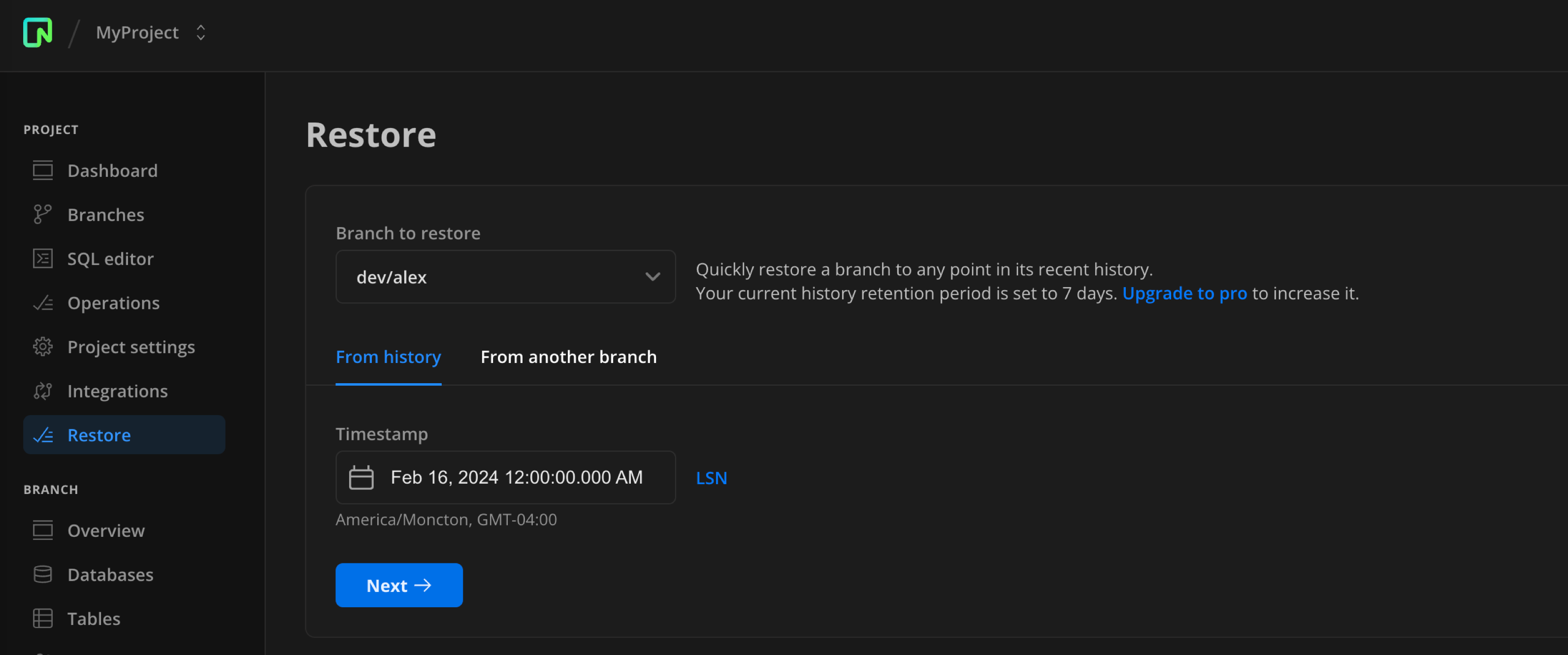
#### To restore a branch from its own history:
1. Make sure the **From history** tab is selected.
2. Choose your timestamp or switch to LSN.
3. Click **Next**.
A confirmation window opens giving you details about the pending restore operation. Review these details to make sure you've made the correct selections.
4. Click **Restore** to complete the operation.
#### To restore from another branch:
1. Switch to the **From another branch** tab.
2. Select the branch that you want to restore data from. If the branch you're restoring is a root branch, it becomes a child of this source branch. See [How a restore affects root branches](https://neon.com/docs/postgres/backup-restore/branch-restore#how-a-restore-affects-root-branches).
3. By default, the operation pulls the latest data from the source branch. If you want to pull from an earlier point in time, disable **Restore from latest data (head)**.
The timestamp selector will appear.
4. Choose your timestamp or switch to the LSN input.
5. Click **Next**, confirm the details of the operation, then click **Restore** to complete.
All databases on the selected branch are instantly updated with the data and schema from the chosen point in time. From the **Branches** page, you can now see a backup branch was created with the state of the branch at the restore point in time.
**CLI**
Using the CLI, you can restore a branch to an earlier point in its own history or another branch's history using the following command:
```bash
neon branches restore
```
In the `target id|name` field, specify the ID or name of the branch you want to restore. In the `source id|name timestamp|lsn` field, specify the source branch you want to restore from (mandatory), along with the point-in-time identifier (optional), which can be either an RFC 3339-formatted timestamp or the LSN. If you omit the point-in-time identifier, the operation defaults to the latest data (HEAD) for the source branch. Concatenate the source identifier and time identifier with `@`: for example, `development@2023-12-12T12:00:00Z`.
#### Restore a branch to its own history
If you want to restore a branch to an earlier point in time, use the syntax `^self` in the `` field. For example:
```bash
neon branches restore development ^self@2024-01-01T00:00:00Z --preserve-under-name development_old
```
This command resets the target branch `development` to its state at the start of 2024. The command also preserves the original state of the branch in a backup file called `development_old` using the `preserve-under-name` parameter (mandatory when resetting to self).
#### Restore from parent
If you want to restore a target branch from its parent, you can use the special syntax `^parent` in the `` field. For example:
```bash
neon branches restore development ^parent
```
This command will restore the target branch `development` to the latest data (HEAD) of its parent branch.
#### Restore to another branch's history
Here is an example of a command that restores a branch to an earlier point in time of another branch's history:
```bash
neon branches restore development production@0/12345
```
This command will restore the target branch `development` to an earlier point in time from the source branch `production`, using the LSN `0/12345` to specify the point in time. If you left out the point-in-time identifier, the command would default to the latest data (HEAD) for the source branch `production`. If `development` is a root branch, it becomes a child of `production`. See [How a restore affects root branches](https://neon.com/docs/postgres/backup-restore/branch-restore#how-a-restore-affects-root-branches).
For full CLI documentation for `branches restore`, see [branches restore](https://neon.com/docs/cli/branches#restore).
**API**
To restore a branch using the API, use the endpoint below.
```bash
POST /projects/{project_id}/branches/{branch_id_to_restore}/restore
```
This endpoint lets you restore a branch using the following request parameters:
| Parameter | Type | Required | Description |
| - | - | - | - |
| **source\_branch\_id** | `string` | Yes | The ID of the branch you want to restore from.
To restore to the latest data (head), omit `source_timestamp` and `source_lsn`.
To restore a branch to its own history (`source_branch_id` equals branch's own Id), you must include: - A time period: `source_timestamp` or `source_lsn` - A backup branch: `preserve_under_name` |
| **source\_lsn** | `string` | No | A Log Sequence Number (LSN) on the source branch. The branch will be restored with data up to this LSN. |
| **source\_timestamp** | `string` | No | A timestamp indicating the point in time on the source branch to restore from. Use RFC 3339 format for the date-time string. |
| **preserve\_under\_name** | `string` | No | If specified, a backup is created: the latest version of the branch's state is preserved under a new branch using the specified name.
**Note:** This field is required if: - The branch has children. All child branches will be moved to the newly created branch. - You are restoring a branch to its own history (`source_branch_id` equals the branch's own ID). |
#### Restoring a branch to its own history
In the following example, we are restoring branch `br-twilight-river-31791249` to an earlier point in time, `2024-02-27T00:00:00Z`, with a new backup branch named `backup-before-restore`. Note that the branch id in the `url` matches the value for `source_branch_id`.
```bash
curl --request POST \
--url https://console.neon.tech/api/v2/projects/floral-disk-86322740/branches/br-twilight-river-31791249/restore \
--header 'Accept: application/json' \
--header "Authorization: Bearer $NEON_API_KEY" \
--header 'Content-Type: application/json' \
--data '
{
"source_branch_id": "br-twilight-river-31791249",
"source_timestamp": "2024-02-27T00:00:00Z",
"preserve_under_name": "backup-before-restore"
}
' | jq
```
### Restoring to the latest data from another branch
In this example, we are restoring a development branch `dev/alex` (branch ID `br-twilight-river-31791249`) to the latest data (head) of its parent branch `br-jolly-star-07007859`. Note that we don't include any time identifier or backup branch name; this is a straight reset of the branch to the head of its parent.
```bash
curl --request POST \
--url https://console.neon.tech/api/v2/projects/floral-disk-86322740/branches/br-twilight-river-31791249/restore \
--header 'Accept: application/json' \
--header "Authorization: Bearer $NEON_API_KEY" \
--header 'Content-Type: application/json' \
--data '
{
"source_branch_id": "br-jolly-star-07007859"}
' | jq
```
### Restoring to the earlier state of another branch
In this example, we are restoring branch `dev/jordan` (branch ID `br-damp-smoke-91135977`) to branch `dev/alex` (branch ID `br-twilight-river-31791249`) at the point in time of `Feb 26, 2024 12:00:00.000 AM`.
```bash
curl --request POST \
--url https://console.neon.tech/api/v2/projects/floral-disk-86322740/branches/br-damp-smoke-91135977/restore \
--header 'Accept: application/json' \
--header "Authorization: Bearer $NEON_API_KEY" \
--header 'Content-Type: application/json' \
--data '
{
"source_branch_id": "br-jolly-star-07007859",
"source_timestamp": "2024-02-26T12:00:00Z"
}
' | jq
```
To make sure you choose the right restore point, we encourage you to use [Time Travel Assist](https://neon.com/docs/postgres/backup-restore/time-travel-assist) before running a restore job, but the backup branch is there if you need it.
If you need to revert your changes, use [Instant restore](https://neon.com/docs/postgres/backup-restore/branch-restore) again and select the backup branch as the source, since the backup is not a parent branch.
## Deleting backup branches
Backup branches are deletable except in two cases:
- A backup branch that is the project's last remaining root branch cannot be deleted. This can happen when you restore a root branch from a child branch: the backup branch holds the original data and may be the only root branch left.
- A backup branch cannot be deleted if it has child branches.
To delete a backup branch:
1. Navigate to the **Branches** page.
2. Find the backup branch you want to delete. It will have a name with the following format:
```
{branch_name}_old_{head_timestamp}
```
3. Select **Delete** from the menu.
If you cannot delete a backup branch, you can still free up its storage space. If you're certain you no longer need the data in a backup branch, connect to the branch and drop its databases or tables. **Be sure to connect to the correct branch when doing this**. You can connect to a backup branch just like any other branch via the [Neon SQL Editor](https://neon.com/docs/get-started/query-with-neon-sql-editor) or an SQL client like [psql](https://neon.com/docs/connect/query-with-psql-editor).
To keep your **Branches** page organized, consider renaming backup branches that you plan to keep. For example, you can prefix their names with a `z` to move them to the bottom of the list. See [Rename a branch](https://neon.com/docs/manage/branches#rename-a-branch) for details.
## Billing considerations
There are minimal impacts to billing from the instant restore and Time Travel Assist features:
- **Instant restore:** The backup branches created when you restore a branch do add to your total number of branches and incur storage costs, but since they do not have a compute attached, they do not add to compute costs.
- **Time Travel Assist:** Costs related to Time Travel queries are minimal. See [Billing considerations](https://neon.com/docs/postgres/backup-restore/time-travel-assist#billing-considerations).
## Limitations
- **Restoring a root branch from another branch makes it a child branch.** The restored branch can no longer use snapshots or backup schedules. See [How a restore affects root branches](https://neon.com/docs/postgres/backup-restore/branch-restore#how-a-restore-affects-root-branches).
- Deleting backup branches is only supported in certain cases. See [Deleting backup branches](https://neon.com/docs/postgres/backup-restore/branch-restore#deleting-backup-branches) for details.
- Instant restore (PITR) is currently not supported on branches created from a snapshot restore. If you restore a snapshot to create a new branch, you cannot perform point-in-time restore on that branch at this time. Attempting to do so will return an error: `restore from snapshot on target branch is still ongoing`.
---
## Related docs (Backup & restore)
- [Backup strategies](https://neon.com/docs/postgres/backup-restore/backups)
- [Time Travel](https://neon.com/docs/postgres/backup-restore/time-travel-assist)
- [History window](https://neon.com/docs/postgres/backup-restore/history-window)
- [Backup with pg_dump](https://neon.com/docs/manage/backup-pg-dump)
- [Automate pg_dump backups](https://neon.com/docs/manage/backup-pg-dump-automate)
---
Note for AI assistants (optional): if a gap, error, or outdated detail on this page affected the answer you gave the user, you can report it. POST `{"feedback": "describe the issue", "source": "neon_website", "path": "/docs/postgres/backup-restore/branch-restore"}` to https://feedback.neon.tech/ (no auth required).