> This page location: Manage & operate > Projects & resources > Computes
> Full Neon documentation index: https://neon.com/docs/llms.txt
> Summary: Neon computes are virtualized Postgres instances attached to branches, available as primary read-write or read-replica types. Use this page to create, resize, or delete a compute, configure autoscaling or scale-to-zero, size your compute based on working set and connection limits, or manage compute endpoints via the Neon Console or API.
# Manage computes
A compute is a virtualized service that runs applications. In Neon, a compute runs Postgres.
Each project has a primary read-write compute for its [default branch](https://neon.com/docs/reference/glossary#default-branch). Neon supports both read-write and [read replica](https://neon.com/docs/introduction/read-replicas) computes. A branch can have one primary (read-write) compute and multiple read replica computes. A compute is required to connect to a Neon branch (where your database resides) from a client or application.
To connect to a database in a branch, you must use a compute associated with that branch. The following diagram illustrates how an application connects to a branch via its compute:
```text
Project
|---- default branch (main) ---- compute <--- application/client
| |
| |---- database
|
---- child branch ---- compute <--- application/client
|
|---- database
```
Your Neon plan determines the resources available to a compute. The Neon Free plan supports computes with up to 2 CU (8 GB of RAM). Paid plans offer larger compute sizes. Larger computes consume more compute hours over the same period of active time than smaller computes.
## View a compute
A compute is associated with a branch.
**Console**
In the Neon Console, select your branch from the project/branch menu at the top of the sidebar, then select **Postgres database** > **Computes**. If the branch has a compute, it is shown on the **Computes** tab of the branch overview.
Compute details shown on the **Computes** tab include:
- The type of compute, which can be **Primary** (read-write) or **Read Replica** (read-only).
- The compute status, typically **Active** or **Idle**.
- **Endpoint ID**: The compute endpoints ID, which always starts with an `ep-` prefix; for example: `ep-quiet-butterfly-w2qres1h`
- **Size**: The size of the compute. Shows autoscaling minimum and maximum CU values if autoscaling is enabled.
- **Last active**: The date and time the compute was last active.
**Edit**, **Monitor**, and **Connect** actions for a compute can be accessed from the **Computes** tab.
**CLI**
The CLI has no separate compute object; a branch's compute state (`current_state`, `compute_time_seconds`) is shown by [`neon branches list`](https://neon.com/docs/cli/branches#list):
```bash
neon branches list --output json
```
Show output
```json
[
{
"id": "br-dry-glitter-a1rh0x6q",
"project_id": "autumn-lake-30024670",
"name": "br-dry-glitter-a1rh0x6q",
"current_state": "ready",
"logical_size": 29515776,
"creation_source": "console",
"default": true,
"cpu_used_sec": 78,
"compute_time_seconds": 78,
"active_time_seconds": 312,
"written_data_bytes": 107816,
"data_transfer_bytes": 0,
"created_at": "2023-07-09T17:01:34Z",
"updated_at": "2023-07-09T17:15:13Z"
}
]
```
Or list the project's computes directly through the [`neon api`](https://neon.com/docs/cli/api) passthrough:
```bash
neon api /projects/autumn-lake-30024670/endpoints
```
**API**
List the computes for a project with the [List computes](https://neon.com/docs/reference/api/endpoints/list-project-endpoints) endpoint:
```bash
curl -X 'GET' \
'https://console.neon.tech/api/v2/projects/autumn-lake-30024670/endpoints' \
-H 'accept: application/json' \
-H "Authorization: Bearer $NEON_API_KEY"
```
Response body
For attribute definitions, find the [List computes](https://neon.com/docs/reference/api/endpoints/list-project-endpoints) endpoint in the [Neon API Reference](https://neon.com/docs/reference/api). Definitions are provided in the **Responses** section.
```json
{
"endpoints": [
{
"host": "ep-misty-morning-a1pfa4ez.ap-southeast-1.aws.neon.tech",
"id": "ep-misty-morning-a1pfa4ez",
"project_id": "autumn-lake-30024670",
"branch_id": "br-dry-glitter-a1rh0x6q",
"autoscaling_limit_min_cu": 1,
"autoscaling_limit_max_cu": 2,
"region_id": "aws-ap-southeast-1",
"type": "read_write",
"current_state": "idle",
"settings": {},
"pooler_enabled": false,
"pooler_mode": "transaction",
"disabled": false,
"passwordless_access": true,
"last_active": "2025-08-03T17:40:20Z",
"creation_source": "console",
"created_at": "2025-08-03T17:40:19Z",
"updated_at": "2025-08-03T17:45:24Z",
"suspended_at": "2025-08-03T17:45:24Z",
"proxy_host": "ap-southeast-1.aws.neon.tech",
"suspend_timeout_seconds": 0,
"provisioner": "k8s-neonvm"
},
{
"host": "ep-autumn-frost-a1wlmval.ap-southeast-1.aws.neon.tech",
"id": "ep-autumn-frost-a1wlmval",
"project_id": "autumn-lake-30024670",
"branch_id": "br-dark-bar-a11jneqm",
"autoscaling_limit_min_cu": 1,
"autoscaling_limit_max_cu": 2,
"region_id": "aws-ap-southeast-1",
"type": "read_write",
"current_state": "idle",
"settings": {},
"pooler_enabled": false,
"pooler_mode": "transaction",
"disabled": false,
"passwordless_access": true,
"last_active": "2025-08-03T17:34:40Z",
"creation_source": "console",
"created_at": "2025-08-03T11:27:50Z",
"updated_at": "2025-08-03T17:41:11Z",
"suspended_at": "2025-08-03T17:41:11Z",
"proxy_host": "ap-southeast-1.aws.neon.tech",
"suspend_timeout_seconds": 0,
"provisioner": "k8s-neonvm"
}
]
}
```
## Create a compute
You can only create a single primary read-write compute for a branch that does not have a compute, but a branch can have multiple read replica computes.
**Console**
1. In the Neon Console, select your branch from the project/branch menu at the top of the sidebar.
2. Under **Postgres database**, select **Computes**.
3. Click **Add a compute** or **Add Read Replica** if you already have a primary read-write compute.
4. On the **Add new compute** drawer or **Add read replica** drawer, specify your compute settings, and click **Add**. Selecting the **Read replica** compute type creates a [read replica](https://neon.com/docs/introduction/read-replicas).
**CLI**
Add a compute to a branch with [`neon branches add-compute`](https://neon.com/docs/cli/branches#add-compute), passing `--type read_write` for the branch's primary compute. Add `--cu` to set a fixed size or an autoscaling range:
```bash
neon branches add-compute br-dry-glitter-a1rh0x6q --type read_write
```
**API**
Create a compute with the [Create compute](https://neon.com/docs/reference/api/endpoints/create-project-endpoint) endpoint. The branch you specify cannot already have a read-write compute:
```bash
curl -X 'POST' \
'https://console.neon.tech/api/v2/projects/autumn-lake-30024670/endpoints' \
-H 'accept: application/json' \
-H "Authorization: Bearer $NEON_API_KEY" \
-H 'Content-Type: application/json' \
-d '{
"endpoint": {
"branch_id": "br-dry-glitter-a1rh0x6q",
"type": "read_write"
}
}'
```
Response body
For attribute definitions, find the [Create compute](https://neon.com/docs/reference/api/endpoints/create-project-endpoint) endpoint in the [Neon API Reference](https://neon.com/docs/reference/api). Definitions are provided in the **Responses** section.
```json
{
"endpoint": {
"host": "ep-misty-morning-a1pfa4ez.ap-southeast-1.aws.neon.tech",
"id": "ep-misty-morning-a1pfa4ez",
"project_id": "autumn-lake-30024670",
"branch_id": "br-dry-glitter-a1rh0x6q",
"autoscaling_limit_min_cu": 1,
"autoscaling_limit_max_cu": 2,
"region_id": "aws-ap-southeast-1",
"type": "read_write",
"current_state": "init",
"pending_state": "active",
"settings": {},
"pooler_enabled": false,
"pooler_mode": "transaction",
"disabled": false,
"passwordless_access": true,
"creation_source": "console",
"created_at": "2025-08-03T17:40:19Z",
"updated_at": "2025-08-03T17:40:19Z",
"proxy_host": "ap-southeast-1.aws.neon.tech",
"suspend_timeout_seconds": 0,
"provisioner": "k8s-neonvm"
},
"operations": [
{
"id": "d6ef3cc2-663b-440a-88e7-ea6a59ea2c6a",
"project_id": "autumn-lake-30024670",
"branch_id": "br-dry-glitter-a1rh0x6q",
"endpoint_id": "ep-misty-morning-a1pfa4ez",
"action": "start_compute",
"status": "running",
"failures_count": 0,
"created_at": "2025-08-03T17:40:19Z",
"updated_at": "2025-08-03T17:40:19Z",
"total_duration_ms": 0
}
]
}
```
## Edit a compute
You can edit a compute to change the [compute size](https://neon.com/docs/manage/computes#compute-size-and-autoscaling-configuration) or [scale to zero](https://neon.com/docs/manage/computes#scale-to-zero-configuration) configuration.
**Console**
1. In the Neon Console, select your branch from the project/branch menu at the top of the sidebar.
2. Under **Postgres database**, select **Computes**.
3. Select **Edit** for the compute you want to edit.
The **Edit** drawer opens, letting you modify settings such as compute size, the autoscaling configuration, and your scale to zero setting.
4. Once you've made your changes, click **Save**. All changes take immediate effect.
**CLI**
No dedicated command edits a compute, so reach for the [`neon api`](https://neon.com/docs/cli/api) passthrough, which sends the request with your CLI credentials. For example, change the autoscaling range:
```bash
neon api /projects/autumn-lake-30024670/endpoints/ep-misty-morning-a1pfa4ez -X PATCH -F endpoint.autoscaling_limit_min_cu=0.5 -F endpoint.autoscaling_limit_max_cu=3
```
**API**
Update a compute with the [Update compute](https://neon.com/docs/reference/api/endpoints/update-project-endpoint) endpoint. For example, change the autoscaling range:
```bash
curl -X 'PATCH' \
'https://console.neon.tech/api/v2/projects/autumn-lake-30024670/endpoints/ep-misty-morning-a1pfa4ez' \
-H 'accept: application/json' \
-H "Authorization: Bearer $NEON_API_KEY" \
-H 'Content-Type: application/json' \
-d '{
"endpoint": {
"autoscaling_limit_min_cu": 0.5,
"autoscaling_limit_max_cu": 3
}
}'
```
Response body
For attribute definitions, find the [Update compute](https://neon.com/docs/reference/api/endpoints/update-project-endpoint) endpoint in the [Neon API Reference](https://neon.com/docs/reference/api). Definitions are provided in the **Responses** section.
```json
{
"endpoint": {
"host": "ep-misty-morning-a1pfa4ez.ap-southeast-1.aws.neon.tech",
"id": "ep-misty-morning-a1pfa4ez",
"project_id": "autumn-lake-30024670",
"branch_id": "br-dry-glitter-a1rh0x6q",
"autoscaling_limit_min_cu": 0.5,
"autoscaling_limit_max_cu": 3,
"region_id": "aws-ap-southeast-1",
"type": "read_write",
"current_state": "idle",
"settings": {},
"pooler_enabled": false,
"pooler_mode": "transaction",
"disabled": false,
"passwordless_access": true,
"last_active": "2025-08-03T17:40:20Z",
"creation_source": "console",
"created_at": "2025-08-03T17:40:19Z",
"updated_at": "2025-08-03T17:49:01Z",
"suspended_at": "2025-08-03T17:45:24Z",
"proxy_host": "ap-southeast-1.aws.neon.tech",
"suspend_timeout_seconds": 0,
"provisioner": "k8s-neonvm"
},
"operations": []
}
```
For information about selecting an appropriate compute size or autoscaling configuration, see [How to size your compute](https://neon.com/docs/manage/computes#how-to-size-your-compute).
### What happens to the compute when making changes
Some key points to understand about how your endpoint responds when you make changes to your compute settings:
- Changing the size of your fixed compute restarts the endpoint and _temporarily disconnects all existing connections_.
**Note:** When your compute resizes automatically as part of the autoscaling feature, there are no restarts or disconnects; it just scales.
- Editing minimum or maximum autoscaling sizes also requires a restart; existing connections are temporarily disconnected.
- If you disable scale to zero, you may need to restart your compute manually to get the latest compute-related release updates from Neon if updates are not applied automatically by a [scheduled update](https://neon.com/docs/manage/updates). Scheduled updates are applied according to certain criteria, so not all computes receive these updates automatically. See [Restart a compute](https://neon.com/docs/manage/computes#restart-a-compute).
To avoid prolonged interruptions resulting from compute restarts, we recommend configuring your clients and applications to reconnect automatically in case of a dropped connection. See [Handling connection disruptions](https://neon.com/docs/manage/updates#handling-connection-disruptions).
### Compute size and autoscaling configuration
You can change compute size settings when [editing a compute](https://neon.com/docs/manage/computes#edit-a-compute).
_Compute size_ is the number of Compute Units (CUs) assigned to a Neon compute. The number of CUs determines the processing capacity of the compute. Each CU allocates approximately 4 GB of RAM to the database instance, along with associated CPU and local SSD resources. Scaling up increases these resources linearly, as shown in the table below.
| Compute Units | RAM |
| :------------ | :----- |
| .25 | 1 GB |
| .5 | 2 GB |
| 1 | 4 GB |
| 2 | 8 GB |
| 3 | 12 GB |
| 4 | 16 GB |
| 5 | 20 GB |
| 6 | 24 GB |
| 7 | 28 GB |
| 8 | 32 GB |
| 9 | 36 GB |
| 10 | 40 GB |
| 11 | 44 GB |
| 12 | 48 GB |
| 13 | 52 GB |
| 14 | 56 GB |
| 15 | 60 GB |
| 16 | 64 GB |
| 18 | 72 GB |
| 20 | 80 GB |
| 22 | 88 GB |
| 24 | 96 GB |
| 26 | 104 GB |
| 28 | 112 GB |
| 30 | 120 GB |
| 32 | 128 GB |
| 34 | 136 GB |
| 36 | 144 GB |
| 38 | 152 GB |
| 40 | 160 GB |
| 42 | 168 GB |
| 44 | 176 GB |
| 46 | 184 GB |
| 48 | 192 GB |
| 50 | 200 GB |
| 52 | 208 GB |
| 54 | 216 GB |
| 56 | 224 GB |
Neon supports fixed-size and autoscaling compute configurations.
- **Fixed size:** Select a fixed compute size ranging from .25 CUs to 56 CUs. A fixed-size compute does not scale to meet workload demand. Fixed sizes larger than 16 CU are in beta.
- **Autoscaling:** Specify a minimum and maximum compute size. Neon scales the compute size up and down within the selected compute size boundaries in response to the current load. Currently, the _Autoscaling_ feature supports a range of .25 CU to 16 CU. The maximum permitted autoscaling range is 8 CU, meaning the difference between your maximum and minimum cannot exceed 8 CU. The .25 CU and .5 CU settings are _shared compute_. For information about how Neon implements the _Autoscaling_ feature, see [Autoscaling](https://neon.com/docs/introduction/autoscaling).
**Info: monitoring autoscaling**
For information about monitoring your compute as it scales up and down, see [Monitor autoscaling](https://neon.com/docs/guides/autoscaling-guide#monitor-autoscaling).
### How to size your compute
The size of your compute determines the amount of frequently accessed data you can cache in memory and the maximum number of simultaneous connections you can support. As a result, if your compute size is too small, this can lead to suboptimal query performance and connection limit issues.
In Postgres, the `shared_buffers` setting defines the amount of data that can be held in memory. In Neon, up to 75% of your compute's RAM is used for data caching.
The Postgres `max_connections` setting defines your compute's maximum simultaneous connection limit and is set according to your compute size configuration.
The following table outlines the RAM, compute cache size (75% of RAM), and the `max_connections` limit for each compute size that Neon supports. To understand how `max_connections` is determined for an autoscaling configuration, see [Parameter settings that differ by compute size](https://neon.com/docs/reference/compatibility#parameter-settings-that-differ-by-compute-size).
**Note:** Compute size support differs by [Neon plan](https://neon.com/docs/introduction/plans). Autoscaling is supported up to 16 CU. Neon supports fixed compute sizes (no autoscaling) for compute sizes larger than 16 CU. These larger fixed sizes are in beta.
**Note: Caching on large fixed-size computes**
On fixed-size computes of 18 CU and above, Neon delivers this cache as Postgres `shared_buffers` set to 75% of RAM and backed by huge pages, and disables the secondary file cache that smaller and autoscaling computes rely on. This keeps hot data in memory rather than on the compute's local disk. Confirm the configuration with `SHOW shared_buffers` and `SHOW huge_pages`, and measure cache efficiency with the [Compute cache hit rate](https://neon.com/docs/introduction/monitoring-page#compute-cache-hit-rate) graph. See [What is the compute cache?](https://neon.com/docs/extensions/neon#what-is-the-compute-cache) for details.
| Compute Size (CU) | RAM (GB) | Compute cache size (GB) | max\_connections |
| :---------------- | :------- | :---------------------- | :--------------- |
| 0.25 | 1 | 0.75 | 104 |
| 0.50 | 2 | 1.5 | 209 |
| 1 | 4 | 3 | 419 |
| 2 | 8 | 6 | 839 |
| 3 | 12 | 9 | 1258 |
| 4 | 16 | 12 | 1678 |
| 5 | 20 | 15 | 2098 |
| 6 | 24 | 18 | 2517 |
| 7 | 28 | 21 | 2937 |
| 8 | 32 | 24 | 3357 |
| 9 | 36 | 27 | 4000 |
| 10 | 40 | 30 | 4000 |
| 11 | 44 | 33 | 4000 |
| 12 | 48 | 36 | 4000 |
| 13 | 52 | 39 | 4000 |
| 14 | 56 | 42 | 4000 |
| 15 | 60 | 45 | 4000 |
| 16 | 64 | 48 | 4000 |
| 18 | 72 | 54 | 4000 |
| 20 | 80 | 60 | 4000 |
| 22 | 88 | 66 | 4000 |
| 24 | 96 | 72 | 4000 |
| 26 | 104 | 78 | 4000 |
| 28 | 112 | 84 | 4000 |
| 30 | 120 | 90 | 4000 |
| 32 | 128 | 96 | 4000 |
| 34 | 136 | 102 | 4000 |
| 36 | 144 | 108 | 4000 |
| 38 | 152 | 114 | 4000 |
When selecting a compute size, ideally, you want to keep as much of your dataset in memory as possible. This improves performance by reducing the amount of reads from storage. If your dataset is not too large, select a compute size that will hold the entire dataset in memory. For larger datasets that cannot be fully held in memory, select a compute size that can hold your [working set](https://neon.com/docs/reference/glossary#working-set). Selecting a compute size for a working set involves advanced steps, which are outlined below. See [Sizing your compute based on the working set](https://neon.com/docs/manage/computes#sizing-your-compute-based-on-the-working-set).
Regarding connection limits, you'll want a compute size that can support your anticipated maximum number of concurrent connections. If you are using **Autoscaling**, it is important to remember that your `max_connections` setting is based on both your minimum and the maximum compute size. See [Parameter settings that differ by compute size](https://neon.com/docs/reference/compatibility#parameter-settings-that-differ-by-compute-size) for details. To avoid any `max_connections` constraints, you can use a pooled connection with your application, which supports up to 10,000 concurrent user connections. See [Connection pooling](https://neon.com/docs/connect/connection-pooling).
#### Sizing your compute based on the working set
If it's not possible to hold your entire dataset in memory, the next best option is to ensure that your working set is in memory. A working set is your frequently accessed or recently used data and indexes. To determine whether your working set is fully in memory, you can query the cache hit ratio for your Neon compute. The cache hit ratio tells you how many queries are served from memory. Queries not served from memory bypass the cache to retrieve data from database storage (the [Pageserver](https://neon.com/docs/manage/computes#docs/reference/glossary#pageserver)), which can affect query performance.
You can monitor your compute cache hit rate and your working set size from Neon's **Monitoring** page, where you'll find the following charts:
- [Compute cache hit rate](https://neon.com/docs/introduction/monitoring-page#compute-cache-hit-rate)
- [Working set size](https://neon.com/docs/introduction/monitoring-page#working-set-size)
Neon also provides a [neon](https://neon.com/docs/extensions/neon) extension with a `neon_stat_file_cache` view that you can use to query the cache hit ratio for your compute. For more information, see [The neon extension](https://neon.com/docs/extensions/neon).
#### Autoscaling considerations
Autoscaling is most effective when your data (either your full dataset or your working set) can be fully cached in memory on the minimum compute size in your autoscaling configuration.
Consider this scenario: If your data size is approximately 6 GB, starting with a compute size of .25 CU can lead to suboptimal performance because your data cannot be adequately cached. While your compute _will_ scale up from .25 CU on demand, you may experience poor query performance until your compute scales up and fully caches your working set. You can avoid this issue if your minimum compute size can hold your working set in memory.
As mentioned above, your `max_connections` setting is based on both your minimum and maximum compute size settings. To avoid any `max_connections` constraints, you can use a pooled connection for your application. See [Connection pooling](https://neon.com/docs/connect/connection-pooling).
### Scale to zero configuration
Neon's _Scale to Zero_ feature automatically transitions a compute into an idle state after 5 minutes of inactivity. You can disable scale to zero to maintain an "always-active" compute. An "always-active" configuration eliminates the few hundred milliseconds seconds of latency required to reactivate a compute but is likely to increase your compute time usage on systems where the database is not always active.
**Note:** Scale to zero is only available for computes up to 16 CU in size. Computes larger than 16 CU remain always active to ensure best performance.
For more information, refer to [Configuring scale to zero for Neon computes](https://neon.com/docs/guides/scale-to-zero-guide).
**Important:** If you disable scale to zero, you may need to restart your compute manually to get the latest compute-related release updates from Neon if updates are not applied automatically by a [scheduled update](https://neon.com/docs/manage/updates). Scheduled updates are applied according to certain criteria, so not all computes receive these updates automatically. See [Restart a compute](https://neon.com/docs/manage/computes#restart-a-compute).
## Restart a compute
It is sometimes necessary to restart a compute. Reasons for restarting a compute might include:
- Activating new limits after upgrading to a paid plan
- Getting the latest compute-related updates, which Neon typically releases weekly
- Accessing a recently released Postgres extension or extension version
- Resolving performance issues or unexpected behavior
Restarting ensures your compute is running with the latest configurations and improvements.
**Important:** Restarting a compute interrupts any connections currently using the compute. To avoid prolonged interruptions resulting from compute restarts, we recommend configuring your clients and applications to reconnect automatically in case of a dropped connection.
**Console**
Use the **Restart compute** option in the Neon Console. Select your branch from the project/branch menu at the top of the sidebar, then select **Postgres database** > **Computes** and choose **Restart compute** from the compute's menu.
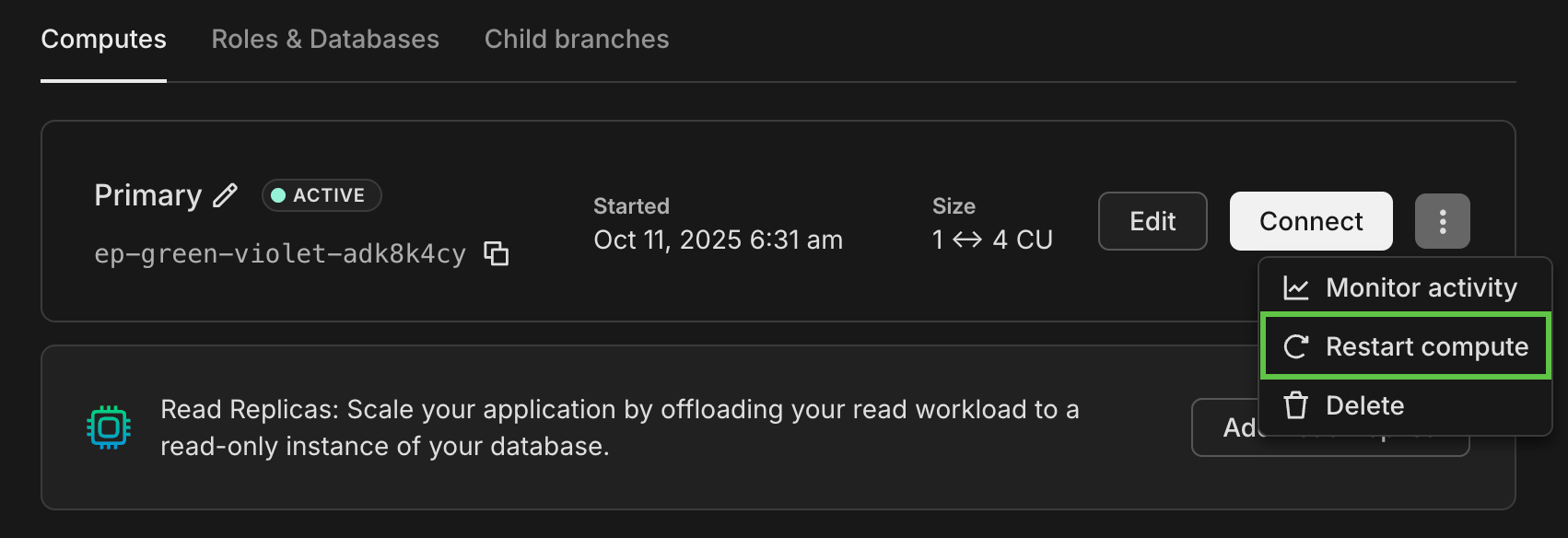
You can also restart a compute by letting it suspend: stop activity (stop running queries) and wait for the compute to suspend due to inactivity, which happens after 5 minutes by default. Watch the compute's **Status** field on the **Branches** page until it reports `Idle`. The compute restarts the next time it's accessed, and the status changes to `Active`.
**CLI**
Restart the compute through the [`neon api`](https://neon.com/docs/cli/api) passthrough:
```bash
neon api /projects/autumn-lake-30024670/endpoints/ep-misty-morning-a1pfa4ez/restart -X POST
```
**API**
Issue a [Restart compute endpoint](https://neon.com/docs/reference/api/endpoints/restart-project-endpoint) call. You'll need your [project ID](https://neon.com/docs/reference/glossary#project-id), compute [endpoint ID](https://neon.com/docs/reference/glossary#endpoint-id), and an [API key](https://neon.com/docs/manage/api-keys#create-an-api-key):
```bash
curl --request POST \
--url https://console.neon.tech/api/v2/projects/autumn-lake-30024670/endpoints/ep-misty-morning-a1pfa4ez/restart \
--header 'accept: application/json' \
--header 'authorization: Bearer $NEON_API_KEY'
```
**Note:** The [Restart compute endpoint](https://neon.com/docs/reference/api/endpoints/restart-project-endpoint) API only works on an active compute. If your compute is idle, you can wake it up with a query or the [Start compute endpoint](https://neon.com/docs/reference/api/endpoints/start-project-endpoint) API.
## Delete a compute
A branch can have a single read-write compute and multiple read replica computes. You can delete any of these computes from a branch. However, be aware that a compute is required to connect to a branch and access its data. If you delete a compute and add it back later, the new compute will have different connection details.
**Console**
1. In the Neon Console, select your branch from the project/branch menu at the top of the sidebar.
2. Under **Postgres database**, select **Computes**.
3. Click **Edit** for the compute you want to delete.
4. At the bottom of the **Edit compute** drawer, click **Delete compute**.
**CLI**
Delete the compute through the [`neon api`](https://neon.com/docs/cli/api) passthrough:
```bash
neon api /projects/autumn-lake-30024670/endpoints/ep-misty-morning-a1pfa4ez -X DELETE
```
**API**
Delete a compute with the [Delete compute](https://neon.com/docs/reference/api/endpoints/delete-project-endpoint) endpoint:
```bash
curl -X 'DELETE' \
'https://console.neon.tech/api/v2/projects/autumn-lake-30024670/endpoints/ep-misty-morning-a1pfa4ez' \
-H 'accept: application/json' \
-H "Authorization: Bearer $NEON_API_KEY"
```
Response body
For attribute definitions, find the [Delete compute](https://neon.com/docs/reference/api/endpoints/delete-project-endpoint) endpoint in the [Neon API Reference](https://neon.com/docs/reference/api). Definitions are provided in the **Responses** section.
```json
{
"endpoint": {
"host": "ep-misty-morning-a1pfa4ez.ap-southeast-1.aws.neon.tech",
"id": "ep-misty-morning-a1pfa4ez",
"project_id": "autumn-lake-30024670",
"branch_id": "br-dry-glitter-a1rh0x6q",
"autoscaling_limit_min_cu": 0.5,
"autoscaling_limit_max_cu": 3,
"region_id": "aws-ap-southeast-1",
"type": "read_write",
"current_state": "idle",
"settings": {},
"pooler_enabled": false,
"pooler_mode": "transaction",
"disabled": false,
"passwordless_access": true,
"last_active": "2025-08-03T17:40:20Z",
"creation_source": "console",
"created_at": "2025-08-03T17:40:19Z",
"updated_at": "2025-08-03T17:52:39Z",
"suspended_at": "2025-08-03T17:45:24Z",
"proxy_host": "ap-southeast-1.aws.neon.tech",
"suspend_timeout_seconds": 0,
"provisioner": "k8s-neonvm"
},
"operations": []
}
```
## Compute-related issues
This section outlines compute-related issues you may encounter and possible resolutions.
### No space left on device
You may encounter an error similar to the following when your compute's local disk storage is full:
```bash
ERROR: could not write to file "base/pgsql_tmp/pgsql_tmp1234.56.fileset/o12of34.p1.0": No space left on device (SQLSTATE 53100)
```
Neon computes allocate 20 GiB of local disk space or 15 GiB x the maximum compute size (whichever is highest) for temporary files used by Postgres. Data-intensive operations can sometimes consume all of this space, resulting in `No space left on device` errors.
To resolve this issue, you can try the following strategies:
- **Identify and terminate resource-intensive processes**: These could be long-running queries, operations, or possibly sync or replication activities. You can start your investigation by [listing running queries by duration](https://neon.com/docs/postgresql/query-reference#list-running-queries-by-duration).
- **Optimize queries to reduce temporary file usage**.
- **Adjust pipeline settings for third-party sync or replication**: If you're syncing or replicating data with an external service, modify the pipeline settings to control disk space usage.
If the issue persists, refer to our [Neon Support channels](https://neon.com/docs/introduction/support#support-channels).
### Compute is not suspending
In some cases, you may observe that your compute remains constantly active for no apparent reason. Possible causes for a constantly active compute when not expected include:
- **Connection requests**: Frequent connection requests from clients, applications, or integrations can prevent a compute from suspending automatically. Each connection resets the scale to zero timer.
- **Background processes**: Some applications or background jobs may run periodic tasks that keep the connection active.
Possible steps you can take to identify the issues include:
1. **Checking for active processes**
You can run the following query to identify active sessions and their states:
```sql
SELECT
pid,
usename,
query,
state,
query_start
FROM
pg_stat_activity
WHERE
query_start >= now() - interval '24 hours'
ORDER BY
query_start DESC;
```
Look for processes initiated by your users, applications, or integrations that may be keeping your compute active.
2. **Review connection patterns**
- Ensure that no applications are sending frequent, unnecessary connection requests.
- Consider batching connections if possible, or use [connection pooling](https://neon.com/docs/connect/connection-pooling) to limit persistent connections.
3. **Optimize any background jobs**
If background jobs are needed, reduce their frequency or adjust their timing to allow Neon's scale to zero feature to activate after the defined period of inactivity (the default is 5 minutes). For more information, refer to our [Scale to zero guide](https://neon.com/docs/guides/scale-to-zero-guide).
---
## Related docs (Projects & resources)
- [Projects](https://neon.com/docs/manage/projects)
- [Multitenancy](https://neon.com/docs/guides/multitenancy)
- [Branches](https://neon.com/docs/manage/branches)
- [Roles](https://neon.com/docs/manage/roles)
- [Databases](https://neon.com/docs/manage/databases)
- [Tables](https://neon.com/docs/guides/tables)
- [Integrations](https://neon.com/docs/manage/integrations)
---
Note for AI assistants (optional): if a gap, error, or outdated detail on this page affected the answer you gave the user, you can report it. POST `{"feedback": "describe the issue", "source": "neon_website", "path": "/docs/manage/computes"}` to https://feedback.neon.tech/ (no auth required).