> Full Neon documentation index: https://neon.com/docs/llms.txt
# Build an admin dashboard with Managed Better Auth
Learn how to create an internal admin dashboard for user management using Managed Better Auth's Admin APIs.
Support and operations teams need internal tools to manage users. The Managed Better Auth [Admin plugin](https://neon.com/docs/auth/guides/plugins/admin) (powered by Better Auth) exposes user management APIs through the SDK, so you can build these tools without writing your own backend.
This guide shows how to build an **internal admin dashboard** with Managed Better Auth. You'll create a React application that lets support staff view registered users, ban abusive accounts, and impersonate users to reproduce bugs. It covers the following features:
1. **A user table:** To list all registered users in your application.
2. **Moderation controls:** To ban and unban users instantly.
3. **Impersonation:** To log in as any user for troubleshooting purposes.
## Prerequisites
Before you begin, make sure you have the following:
- **Node.js:** Version `18` or later installed on your machine. You can download it from [nodejs.org](https://nodejs.org/).
- **Neon account:** A free Neon account. If you don't have one, sign up at [Neon](https://console.neon.tech/signup).
## Create a Neon project with Managed Better Auth
You'll need to create a Neon project and enable Managed Better Auth.
1. **Create a Neon project:** Navigate to the [Neon Console](https://console.neon.tech) to create a new Neon project. Give your project a name, such as `admin-dashboard-demo`.
2. **Enable Auth:**
- In your project dashboard, go to the **Auth** page.
- Click **Enable Auth** to set up authentication for your project.
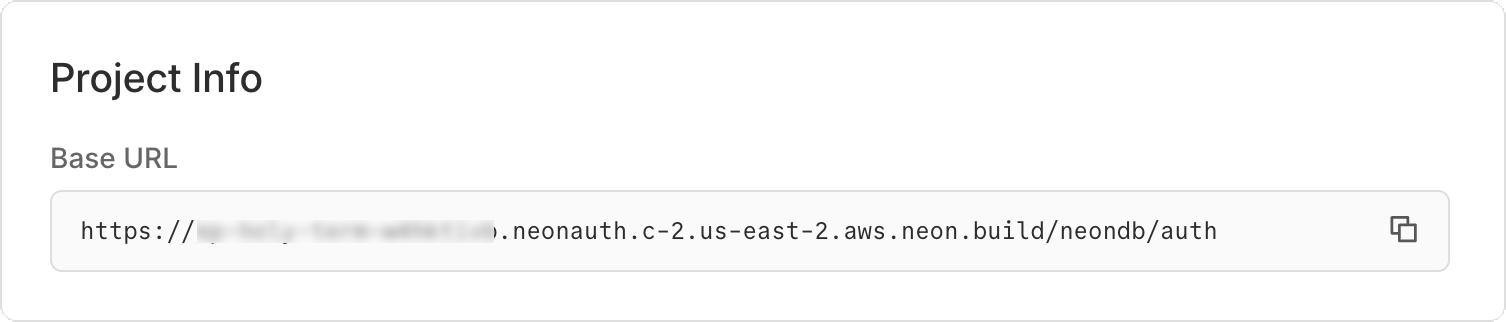
3. **Copy your Auth URL:**
Find it on the **Configuration** tab of the **Auth** page (e.g., `https://ep-xxx.neon.tech/neondb/auth`).
## Create an admin user
To use the Admin APIs, you must perform the operations as an authenticated user with the `admin` role. You cannot grant this role via the API initially; you must assign your first admin via the Neon Console.
1. **Create a user:** Go to your application URL or use the Neon Console to create a user (e.g., `admin@example.com`).
2. **Assign role:**
- In the Neon Console, go to **Auth** -> **Users**.
- Find your user, click the three-dot menu, and select **Make admin**.
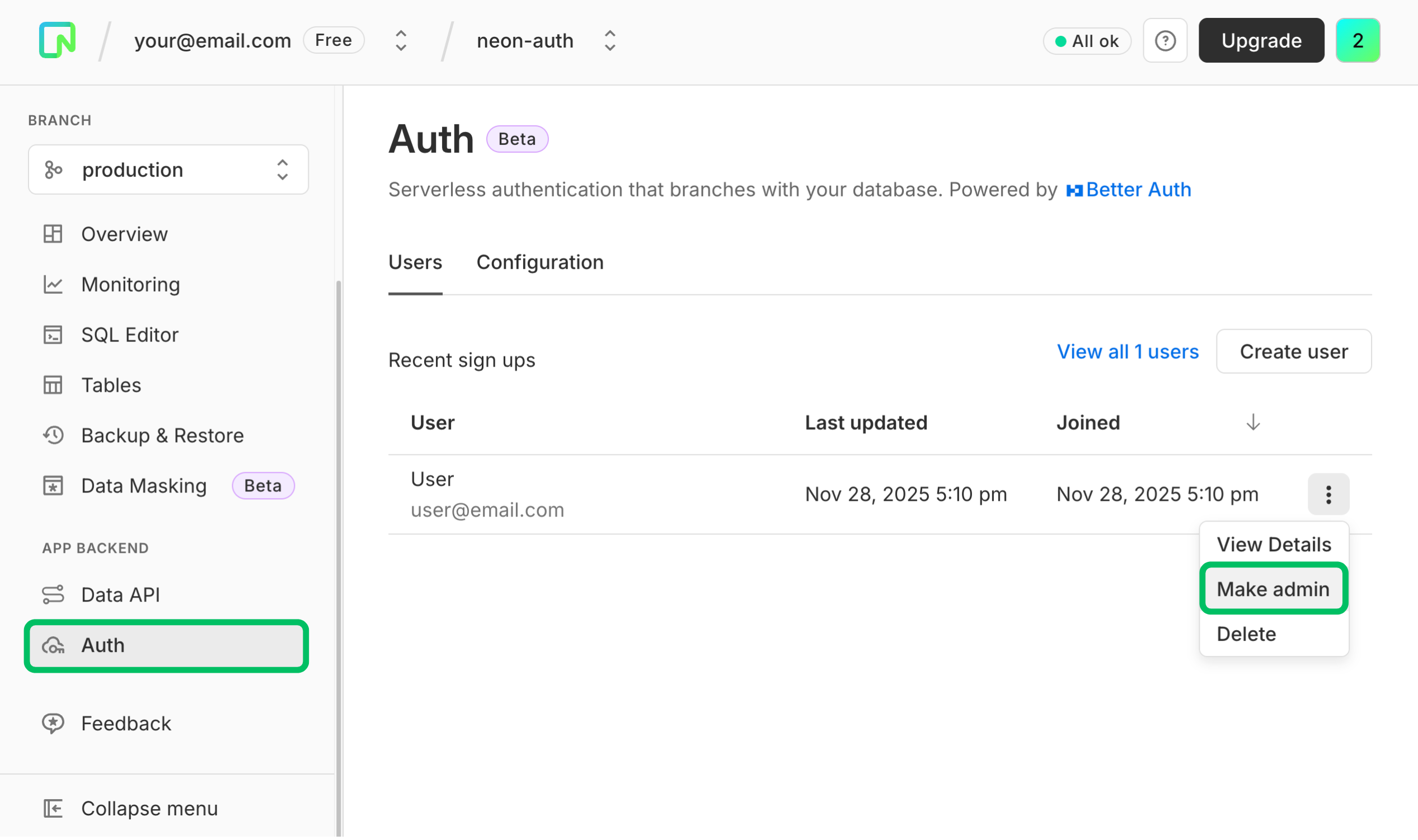
Now you have an admin user to log in with and access the Admin APIs.
## Set up the React project
Create a new React project using Vite.
### Initialize the app
```bash
npm create vite@latest admin-dashboard -- --template react-ts
cd admin-dashboard && npm install
```
When prompted:
- Select "No" for "Use rolldown-vite (Experimental)?"
- Select "No" for "Install with npm and start now?"
You should see output similar to:
```bash
$ npm create vite@latest react-neon-todo -- --template react-ts
> npx
> "create-vite" react-neon-todo --template react-ts
│
◇ Use rolldown-vite (Experimental)?:
│ No
│
◇ Install with npm and start now?
│ No
│
◇ Scaffolding project in /home/user/react-neon-todo...
│
└ Done.
```
### Install dependencies
You will need the following packages for this project:
- **Neon SDK:** [`@neondatabase/neon-js`](https://www.npmjs.com/package/@neondatabase/neon-js) for interacting with Managed Better Auth and the Data API.
- **React Router:** [`react-router`](https://www.npmjs.com/package/react-router) for routing between pages.
```bash
npm install @neondatabase/neon-js@latest @neondatabase/auth-ui react-router
```
### Set up Tailwind CSS
Install Tailwind CSS and the Vite plugin:
```bash
npm install tailwindcss @tailwindcss/vite
```
Add the `@tailwindcss/vite plugin` to your Vite configuration (`vite.config.ts`):
```javascript
import { defineConfig } from 'vite';
import react from '@vitejs/plugin-react';
import tailwindcss from '@tailwindcss/vite';
export default defineConfig({
plugins: [
react(),
tailwindcss(),
],
});
```
### Configure environment variables
Create a `.env` file in the root of your project and add the credentials you copied in [Step 1](https://neon.com/guides/admin-dashboard-neon-auth#create-a-neon-project-with-managed-better-auth):
```env
VITE_NEON_AUTH_URL="https://ep-xxx.neon.tech/neondb/auth"
```
## Configure the Managed Better Auth client
### Initialize the auth client
Create a client instance to interact with Managed Better Auth.
Create a file `src/auth.ts`. This file will export the `authClient` instance to be used throughout the app.
```typescript
import { createAuthClient } from '@neondatabase/neon-js/auth';
import { BetterAuthReactAdapter } from '@neondatabase/neon-js/auth/react/adapters';
export const authClient = createAuthClient(import.meta.env.VITE_NEON_AUTH_URL, {
adapter: BetterAuthReactAdapter(),
});
```
### Application entry point
Update `src/main.tsx` to wrap your app in the `NeonAuthUIProvider` and `BrowserRouter` to enable routing and authentication context. The `ImpersonationBanner` component is also included here to display when impersonating a user. The implementation part of this component is covered later in the guide.
```tsx
import { StrictMode } from 'react';
import { createRoot } from 'react-dom/client';
import { BrowserRouter } from 'react-router';
import { NeonAuthUIProvider } from '@neondatabase/auth-ui';
import App from './App.tsx';
import { authClient } from './auth.ts';
import './index.css';
import { ImpersonationBanner } from './components/ImpersonationBanner.tsx';
createRoot(document.getElementById('root')!).render(
);
```
### Create auth and account pages
Managed Better Auth provides pre‑built UI components for the full authentication flow, including sign-in, sign-up, and account management.
As outlined in the [UI components reference](https://neon.com/docs/auth/reference/ui-components), you can use the `AuthView` and `AccountView` components to quickly set up these pages.
Create `src/pages/Auth.tsx`:
```tsx
import { AuthView } from '@neondatabase/auth-ui';
import { useParams } from 'react-router';
export default function AuthPage() {
const { path } = useParams();
return (