








This guide shows how to build AI agents that can query your database, manage resources, and perform tasks on your Neon account. It uses CrewAI for agent orchestration, Composio for tool integration, and the Neon API for database management.
Composio sits between your CrewAI agents and the Neon API. Through it, agents can query your Neon project details and manage your databases programmatically. Composio's tool catalog gives your agents a set of ready-made actions, so you don't need to write API integrations by hand.
You'll build an agent that retrieves information from your Neon account, then see how to extend it with other Neon actions.
Prerequisites
Before you start, make sure you have the following:
-
Python 3.10 or higher: CrewAI requires Python 3.10 or later. This guide uses Python. If you don't have it already, download and install it from python.org.
-
Neon account and API key:
- Sign up for a free Neon account at neon.tech.
- Once signed up, you can find your Neon API key in your account settings. You'll need this key to authenticate your application with Neon.
-
Composio account and API key:
- Create a Composio account by visiting composio.dev.
- After signing up and logging in, your Composio API key will be available in your Composio dashboard. You will need this to authenticate your application.
-
OpenAI account and API key:
- This guide uses
gpt-4o-minifrom OpenAI to power the AI agent. If you don't have one, sign up for an account at platform.openai.com. - Create a new API key in the OpenAI Platform API keys section. CrewAI uses this key to call the
gpt-4o-minimodel.
- This guide uses
Build an AI agent that uses the Neon API
The following steps take you from an empty directory to a running agent.
Project structure
For this guide, we'll keep the project structure simple. Create a directory for your project, for example neon-composio-crewai, and inside it, you'll have the following files:
mkdir neon-composio-crewaineon-composio-crewai/
├── main.py # Main Python script to run the AI agent
├── requirements.txt # Lists Python dependencies
├── .env # Your environment variablesSet up a virtual environment
Create a virtual environment for the project's dependencies using venv:
cd neon-composio-crewai
python3 -m venv venv
source venv/bin/activate # on Windows, use `venv\Scripts\activate`
Install required libraries
Next, install the Python libraries for this project. Create a requirements.txt file in your project directory and add the following lines:
composio-crewai
crewai
python-dotenv
Then, install the libraries using pip:
pip install -r requirements.txtConfigure API keys in.env
Create a new file named .env in your project directory and add the following lines:
OPENAI_API_KEY = YOUR_OPENAI_API_KEY
COMPOSIO_API_KEY = YOUR_COMPOSIO_API_KEY
NEON_API_KEY = YOUR_NEON_API_KEY
Replace the placeholders YOUR_OPENAI_API_KEY, YOUR_COMPOSIO_API_KEY, and YOUR_NEON_API_KEY with the API keys you obtained in the Prerequisites section.
note
Make sure you have added .env to your .gitignore file if you are using Git. This prevents your API keys from being accidentally committed to your code repository.
Create themain.pyfile
Create a new file named main.py in your project root directory and paste the following code into it:
import os

from crewai import Agent, Task, Crew
from composio_crewai import ComposioToolSet, App
from dotenv import load_dotenv

load_dotenv()

toolset = ComposioToolSet()

# To connect to Neon, either create a new connection or use an existing one configured in your Composio dashboard (Apps -> Integrations).
# You can comment out the connection creation if you have already created a connection in the dashboard.
connection = toolset.initiate_connection(
    app=App.NEON, connected_account_params={"api_key": os.getenv("NEON_API_KEY")}
)

tools = toolset.get_tools(actions=["NEON_GET_CURRENT_USER_INFORMATION"])

# Define agent
crewai_agent = Agent(
    role="Assistant",
    goal="""You are an AI agent that is responsible for taking actions based on the tools you have""",
    backstory=(
        "You are AI agent that is responsible for taking actions based on the tools you have"
    ),
    verbose=True,
    tools=tools,
    llm="gpt-4o-mini",
)

task = Task(
    description="List me my neon current user details",
    agent=crewai_agent,
    expected_output="All important details of the current user in a single sentence.",
)

my_crew = Crew(agents=[crewai_agent], tasks=[task])

result = my_crew.kickoff()
print(result)
Here's what the script does, step by step.
Import necessary libraries and load environment variables
import os

from crewai import Agent, Task, Crew
from composio_crewai import ComposioToolSet, App
from dotenv import load_dotenv

load_dotenv()
The script imports the CrewAI library, the Composio CrewAI library, and the load_dotenv function from the python-dotenv library. We also call load_dotenv() to load environment variables from the .env file.
InitializeComposioToolSet
toolset = ComposioToolSet()This creates an instance of ComposioToolSet, which is the main entry point to interact with Composio tools from CrewAI.
Initiate connection to Neon
connection = toolset.initiate_connection(
    app=App.NEON, connected_account_params={"api_key": os.getenv("NEON_API_KEY")}
)toolset.initiate_connection(...)initiates a connection to a specific app in Composio.app=App.NEONspecifies that the connection is for the Neon app.connected_account_params={"api_key": os.getenv("NEON_API_KEY")}provides the Neon API key for authentication. This API key is retrieved from your environment variables.
note
If you have already set up a Neon connection in your Composio dashboard, you can comment out these lines. The existing connection will be used automatically when you specify the app in the toolset methods. However, for the guide, we are showing how to establish a connection programmatically.
Retrieve tools
tools = toolset.get_tools(actions=["NEON_GET_CURRENT_USER_INFORMATION"])toolset.get_tools(actions=[...])fetches the specified tools (actions) from the Composio toolset.actions=["NEON_GET_CURRENT_USER_INFORMATION"]indicates that we want to use theNEON_GET_CURRENT_USER_INFORMATIONaction, which retrieves your Neon user details. This action is part of the Neon toolset in Composio.
Define the AI agent
crewai_agent = Agent(
    role="Assistant",
    goal="""You are an AI agent that is responsible for taking actions based on the tools you have""",
    backstory=(
        "You are AI agent that is responsible for taking actions based on the tools you have"
    ),
    verbose=True,
    tools=tools,
    llm="gpt-4o-mini",
)
This code defines a CrewAI agent named crewai_agent.
role,goal,backstory: These attributes define the agent's identity and purpose.verbose=True: Enables detailed output from the agent, which helps with debugging and shows the agent's reasoning.tools=tools: Assigns the Composio Neon tools we retrieved in the previous step to this agent. The agent can now use these tools to perform actions.llm="gpt-4o-mini": Specifies that the agent will use thegpt-4o-minilanguage model from OpenAI.
Define the task
task = Task(
    description="List me my neon current user details",
    agent=crewai_agent,
    expected_output="All important details of the current user in a single sentence.",
)
This creates a task for the agent to perform.
description: Describes the task for the agent: "List me my neon current user details".agent=crewai_agent: Assigns the task to thecrewai_agentwe defined.expected_output: (Optional) Specifies the desired output format for the task.
Create and run the crew
my_crew = Crew(agents=[crewai_agent], tasks=[task])

result = my_crew.kickoff()
print(result)
my_crew = Crew(...): Creates a CrewAI crew with the defined agents and tasks.result = my_crew.kickoff(): Starts the crew execution. The agent will now execute the assigned task.print(result): Prints the result returned by the agent after completing the task. This will be the Neon user information.
Run the example
In your terminal, run:
python main.pyThe script connects to Composio and Neon using your API keys, creates a CrewAI agent, and has the agent call the NEON_GET_CURRENT_USER_INFORMATION action. It then prints your Neon user information in the terminal.
Expected output
After running python main.py, you should see the information about your Neon user printed in the terminal. The output will look something like this:
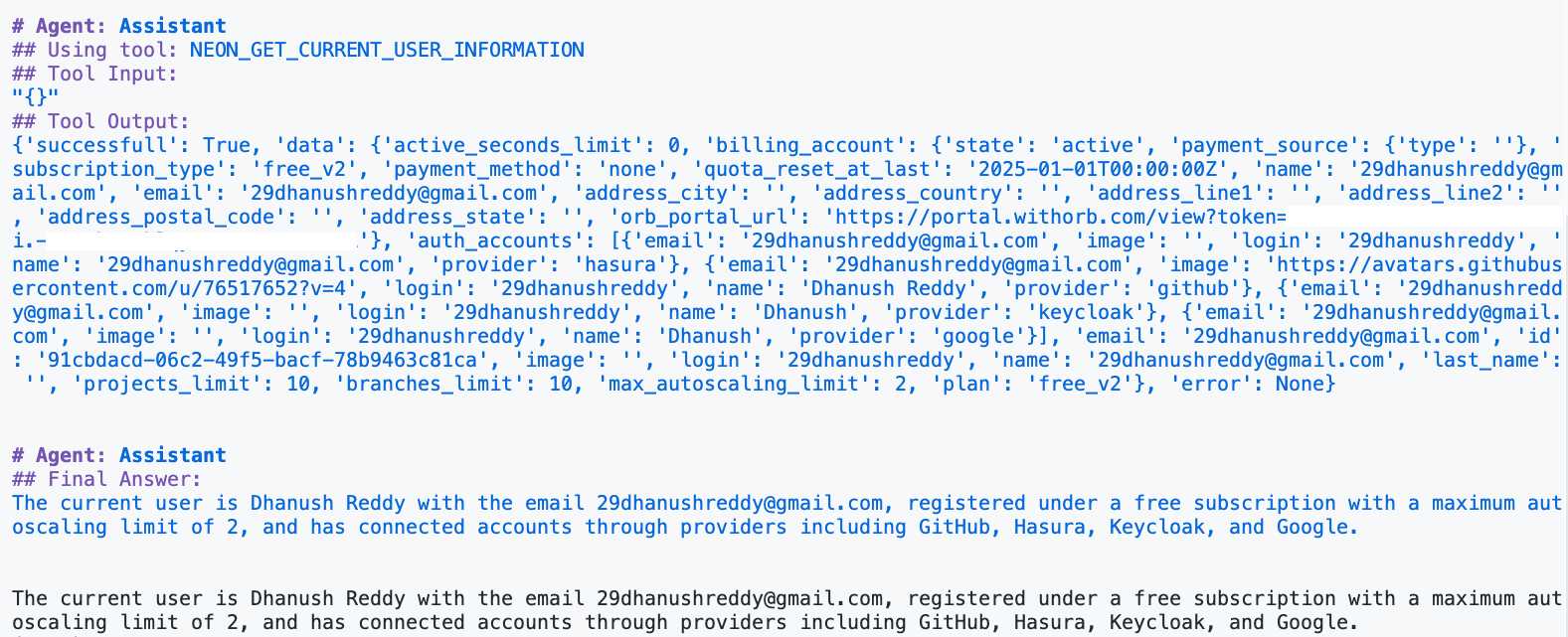
You have built and run an AI agent that can interact with your Neon account using CrewAI and Composio.
Explore other Neon actions
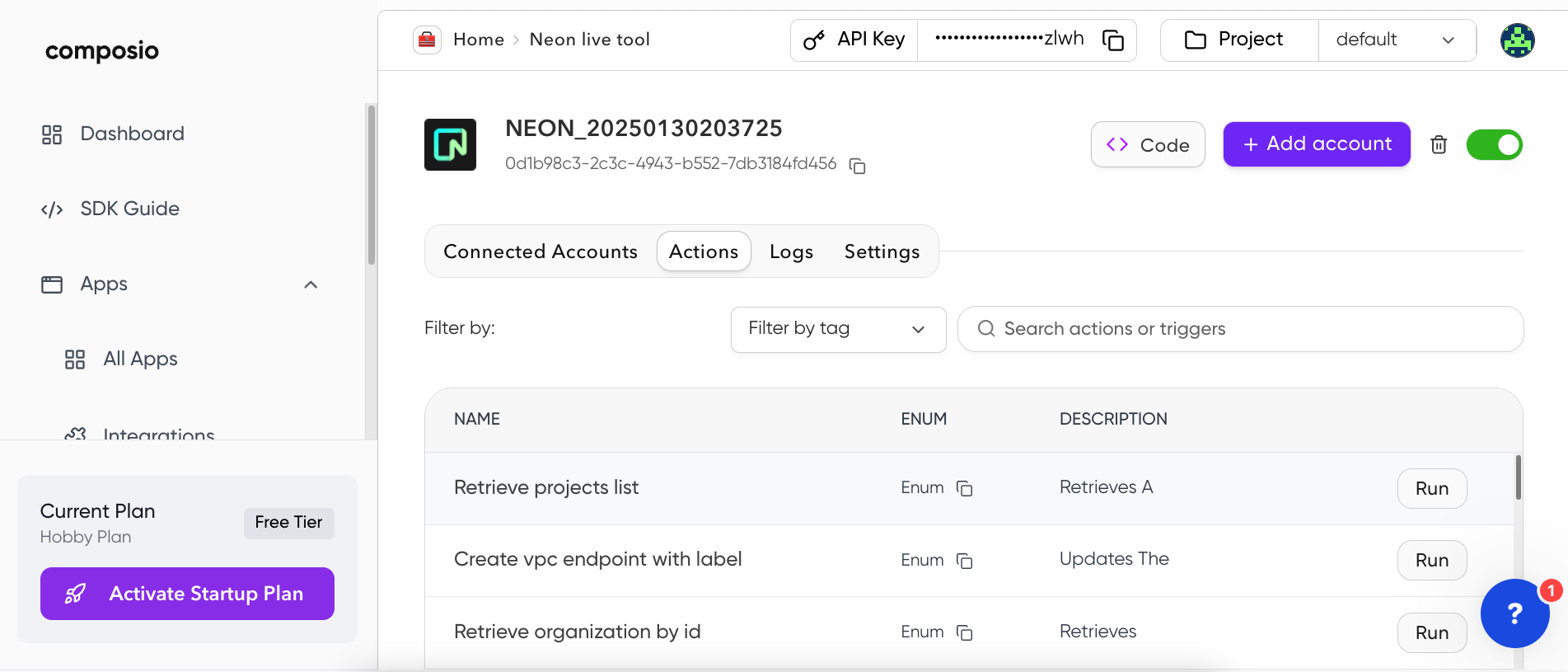
The Composio Neon tool provides many actions you can use to manage your Neon projects. The example we just ran used the NEON_GET_CURRENT_USER_INFORMATION action to retrieve your user details. You can modify the main.py script to experiment with other actions. For example, to get a list of your Neon projects, you would change the actions list in toolset.get_tools(...) to:
tools = toolset.get_tools(actions=["NEON_RETRIEVE_PROJECTS_LIST"])and update the task description accordingly.
Here's a list of all the available actions that you can use with the Neon Composio tool:
important
These actions are subject to change. For the latest information and a complete list of available actions, please check the available actions under Neon app in your Composio dashboard.
| Action name | Description |
|---|---|
NEON_RETRIEVE_PROJECTS_LIST | Retrieves a list of all Neon projects associated with the authenticated user's account. |
NEON_CREATE_VPC_ENDPOINT_WITH_LABEL | Updates the label of a specific VPC endpoint within an organization's VPC in a particular AWS region. |
NEON_RETRIEVE_ORGANIZATION_BY_ID | Retrieves detailed information about a specific Neon organization. |
NEON_FETCH_VPCENDPOINT_DETAILS_BY_ID | Retrieves detailed information about a specific VPC endpoint within an organization's infrastructure. |
NEON_TRANSFER_USER_PROJECTS_TO_ORGANIZATION | Transfers multiple projects from the authenticated user's personal account to a specified organization. |
NEON_CREATE_VPC_ENDPOINT_LABEL | Updates the label of a specific VPC endpoint within a project. |
NEON_GET_BRANCHES_FOR_PROJECT | Retrieves a list of branches associated with a specific project. |
NEON_GET_CURRENT_USER_INFORMATION | Retrieves the profile information for the currently authenticated user. |
NEON_DELETE_VPC_ENDPOINT_BY_IDS | Deletes a specific VPC endpoint within a given organization and region. |
NEON_GET_USER_ORGANIZATIONS | Retrieves a list of organizations associated with the currently authenticated user. |
NEON_FETCH_ORGANIZATION_MEMBERS_BY_ID | Retrieves a list of all members associated with a specific organization. |
NEON_RETRIEVE_PROJECT_OPERATIONS | Retrieves a list of operations associated with a specific project. |
NEON_GET_PROJECT_CONNECTION_URI | Retrieves the connection URI for a specified project. |
NEON_GET_PROJECT_ENDPOINT_INFORMATION | Retrieves a list of all endpoints associated with a specific project. |
NEON_RETRIEVE_ORGANIZATION_MEMBER_INFO | Retrieves detailed information about a specific member within an organization. |
NEON_RETRIEVE_ALL_REGIONS | Retrieves a list of regions supported by Neon. |
NEON_UPDATE_ORGANIZATION_MEMBER_ROLE | Updates the role of a specific member within an organization. |
NEON_SEND_ORGANIZATION_INVITATIONS | Creates and sends invitations to join an organization. |
NEON_GET_BRANCH_ROLES_FOR_PROJECT | Retrieves the roles associated with a specific branch within a project. |
NEON_LIST_SHARED_PROJECTS | Retrieves a list of shared projects accessible to the authenticated user. |
NEON_ACCESS_PROJECT_DETAILS_BY_ID | Retrieves detailed information about a specific project. |
NEON_FETCH_DATABASE_FOR_BRANCH | Retrieves a list of databases associated with a specific project and branch. |
NEON_DELETE_API_KEY_BY_ID | Deletes a specific Neon API key. |
NEON_RETRIEVE_PROJECT_ENDPOINT_DETAILS | Retrieves detailed information about a specific endpoint within a project. |
NEON_RETRIEVE_ACCOUNT_CONSUMPTION_HISTORY | Retrieves the consumption history for a specified account. |
NEON_DELETE_PROJECT_PERMISSION | Deletes a specific permission associated with a project. |
NEON_GET_SCHEMA_FOR_PROJECT_BRANCH | Retrieves the schema definition for a specific branch within a project. |
NEON_RETRIEVE_ORGANIZATION_INVITATIONS | Retrieves a list of all pending invitations for a specified organization. |
NEON_DELETE_VPC_ENDPOINT_BY_PROJECT_ID | Deletes a specific VPC endpoint within a designated project. |
NEON_GET_VPC_REGION_ENDPOINTS | Retrieves a list of VPC endpoints for a specified organization within a particular AWS region. |
NEON_RETRIEVE_BRANCH_DATABASE_DETAILS | Retrieves detailed information about a specific database within a Neon project and branch. |
NEON_RESET_ROLE_PASSWORD_FOR_BRANCH | Resets the password for a specific role within a project branch. |
NEON_DELETE_PROJECT_BRANCH_BY_ID | Deletes a specific branch within a project. |
NEON_DELETE_PROJECT_ENDPOINT | Deletes a specific endpoint within a Neon project. |
NEON_LIST_API_KEYS | Retrieves a list of API keys associated with the authenticated user's account. |
NEON_ADD_NEW_JWKS_TO_PROJECT_ENDPOINT | Adds a new JSON Web Key Set (JWKS) to a specific endpoint of a project. |
NEON_CREATE_NEW_API_KEY | Creates a new Neon API key. |
NEON_RETRIEVE_JWKS_FOR_PROJECT | Retrieves the JSON Web Key Set (JWKS) for a specified project. |
NEON_GET_CONSUMPTION_HISTORY_PROJECTS | Retrieves the consumption history for specified projects. |
NEON_SUSPEND_PROJECT_ENDPOINT_BY_ID | Suspends a specific endpoint within a project. |
NEON_DELETE_PROJECT_JWKS_BY_ID | Deletes a specific JSON Web Key Set (JWKS) associated with a given project. |
NEON_GET_PROJECT_OPERATION_BY_ID | Retrieves detailed information about a specific operation within a project. |
NEON_UPDATE_PROJECT_SETTINGS_BY_ID | Updates the configuration and settings of a specific Neon project. |
NEON_GET_PROJECT_BRANCHES | Retrieves detailed information about a specific branch within a Neon project. |
NEON_DELETE_PROJECT_BY_ID | Deletes a specific Neon project. |
NEON_DELETE_DATABASE_FROM_BRANCH | Deletes a specific database from a designated branch within a project. |
NEON_RETRIEVE_BRANCH_ENDPOINTS | Retrieves a list of endpoints associated with a specific branch of a project. |
NEON_ADD_PROJECT_EMAIL_PERMISSION | Adds permissions for a specified email address to a particular project. |
NEON_UPDATE_PROJECT_COMPUTE_ENDPOINT_SETTINGS | Updates the configuration of a specific compute endpoint within a Neon project. |
NEON_RETRIEVE_VPC_ENDPOINTS_FOR_PROJECT | Retrieves a list of VPC endpoints associated with a specific project. |
NEON_CREATE_BRANCH_DATABASE | Creates a new database within a specified project and branch. |
NEON_DELETE_ORGANIZATION_MEMBER | Removes a specific member from an organization. |
NEON_ADD_ROLE_TO_BRANCH | Creates a new role within a specific branch of a project. |
NEON_GET_PROJECT_BRANCH_ROLE | Retrieves detailed information about a specific role within a particular branch of a Neon project. |
NEON_CREATE_COMPUTE_ENDPOINT | Creates a new compute endpoint for a specified branch within a Neon project. |
NEON_RETRIEVE_PROJECT_PERMISSIONS | Retrieves the current permission settings for a specific project. |
NEON_GET_ORGANIZATION_API_KEYS | Retrieves a list of all API keys associated with a specific organization. |
NEON_MODIFY_BRANCH_DETAILS_IN_PROJECT | Updates the details of a specific branch within a project. |
NEON_SET_BRANCH_AS_DEFAULT | Sets a specified branch as the default branch for a given project. |
NEON_CREATE_API_KEY_FOR_ORGANIZATION | Creates a new API key for the specified organization, with optional project-specific access. |
NEON_START_ENDPOINT_FOR_PROJECT | Initiates a specific process or workflow associated with a particular endpoint within a project. |
NEON_DELETE_PROJECT_BRANCH_ROLE | Deletes a specific role from a branch within a project. |
NEON_RESTORE_PROJECT_BRANCH | Restores a branch to a specific state or point in time. |
NEON_PATCH_BRANCH_DATABASE_INFORMATION | Updates the properties of a specific database within a project branch. |
NEON_CREATE_NEW_PROJECT_BRANCH | Creates a new branch in a Neon project with optional compute endpoints. |
NEON_RESTART_PROJECT_ENDPOINT | Restarts a specific endpoint within a project. |
NEON_DELETE_ORGANIZATION_API_KEY | Deletes a specific API key associated with an organization. |
NEON_CREATE_PROJECT_WITH_QUOTA_AND_SETTINGS | Creates a new Neon project with specified configuration settings. |
NEON_REVEAL_ROLE_PASSWORD_IN_BRANCH | Reveals the password for a specific role within a branch of a Neon project. |
Each action may require specific input parameters, which Composio needs to run the operation against your Neon account.
You can find detailed information about each action, including its required parameters and their descriptions under the Neon app in your Composio dashboard.
To use actions that require parameters, include those parameters in the description of the task you assign to your CrewAI agent. The agent extracts them from the task description when it uses the Composio tool.
For example, consider the NEON_GET_PROJECT_CONNECTION_URI action.
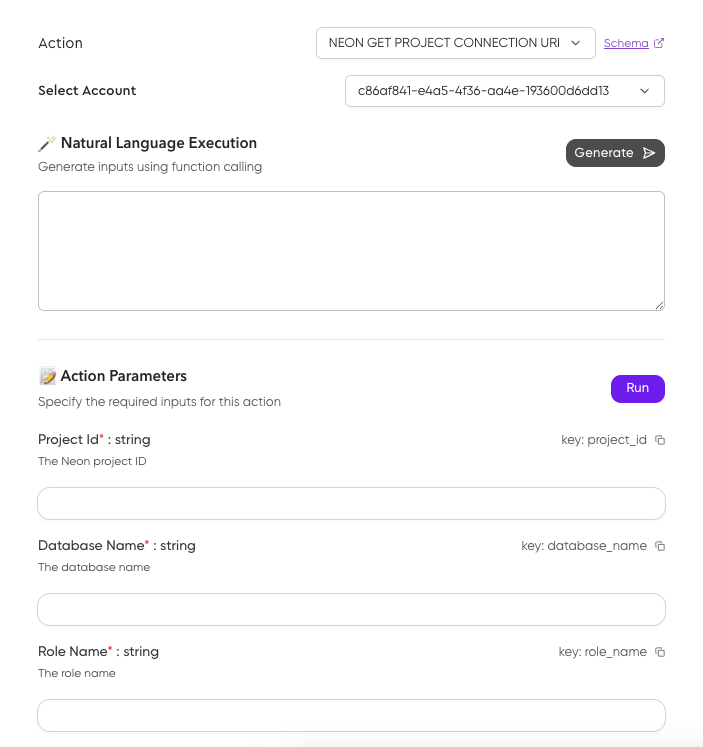
This action needs the project_id, database_name, and role_name to retrieve the correct connection string. Here's how you would define a task to use this action, embedding the necessary parameters directly in the task description:
get_connection_string_task = Task(
    description="Get the connection string for the Neon project with ID 'crimson-sea-41647396', for the database named 'neondb', using the role 'neondb_owner'.",
    agent=crewai_agent,
    expected_output="The Neon connection string.",
)
The task description provides everything the NEON_GET_PROJECT_CONNECTION_URI action needs. When crewai_agent executes the task, it works out from the description which action to use and which parameters to pass. Write each task description to include the parameters its action requires.
Summary
You built a CrewAI agent that calls the Neon API through Composio and retrieves your Neon user information.
As a next step, add more Neon actions. For example, you could create projects with NEON_CREATE_PROJECT_WITH_QUOTA_AND_SETTINGS, retrieve connection URIs with NEON_GET_PROJECT_CONNECTION_URI, and then run queries with a Postgres library of your choice.
You can find the source code for the application described in this guide on GitHub.

Resources
Need help?
Join our Discord Server to ask questions or see what others are doing with Neon. For paid plan support options, see Support.
