



I just released Neon for Herdr, a Herdr plugin that puts your Neon projects in a pane next to whatever you are already doing, so creating a branch, grabbing its connection string, or suspending a compute is only a keypress away.
The plugin lives here: neon-solutions/neon-herdr
What Neon for Herdr does
Herdr is a terminal workspace manager for developers and coding agents. Your editor, shells, and agents live in panes inside one persistent workspace, and plugins can add their own panes and actions. Neon for Herdr is the plugin that turns Neon into one of those panes: a terminal dashboard built with Ink, Effect, and the Neon TypeScript SDK.
Inside Neon for Herdr, the project list shows every project you can reach, with its region, Postgres version, and storage:
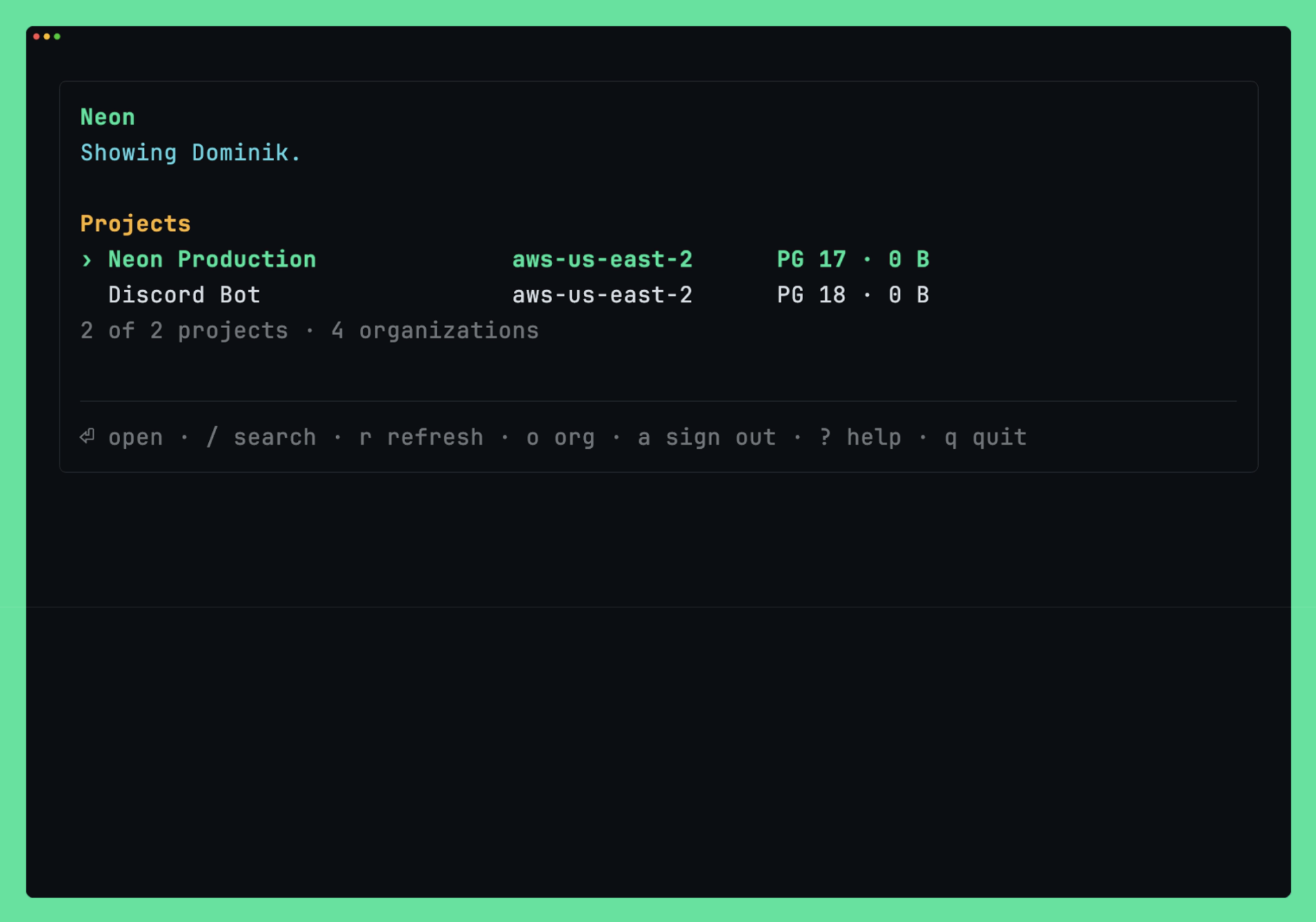
/ opens a live fuzzy search over project name, organization, ID, and region. It ranks the cached list, so typing doesn't fire a request per keystroke.
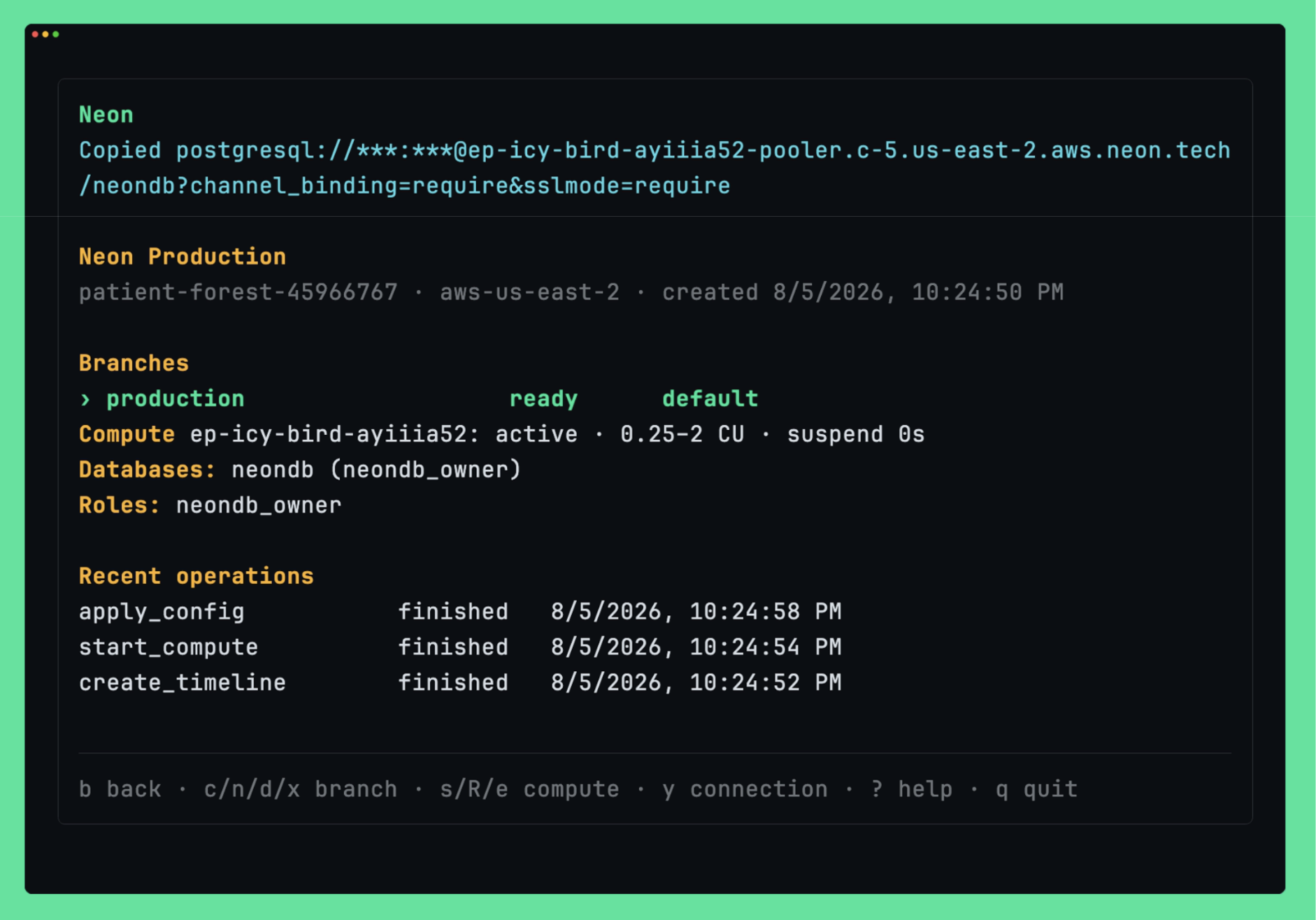
Hit Enter on a project and you land on this screen below. Every branch shows its state and whether it's default or protected. The selected branch fills in its databases and roles, with the last four operations Neon ran at the bottom. The compute line is the one I read most: active or idle, the autoscaling range, and the suspend timeout for whichever branch you have selected:
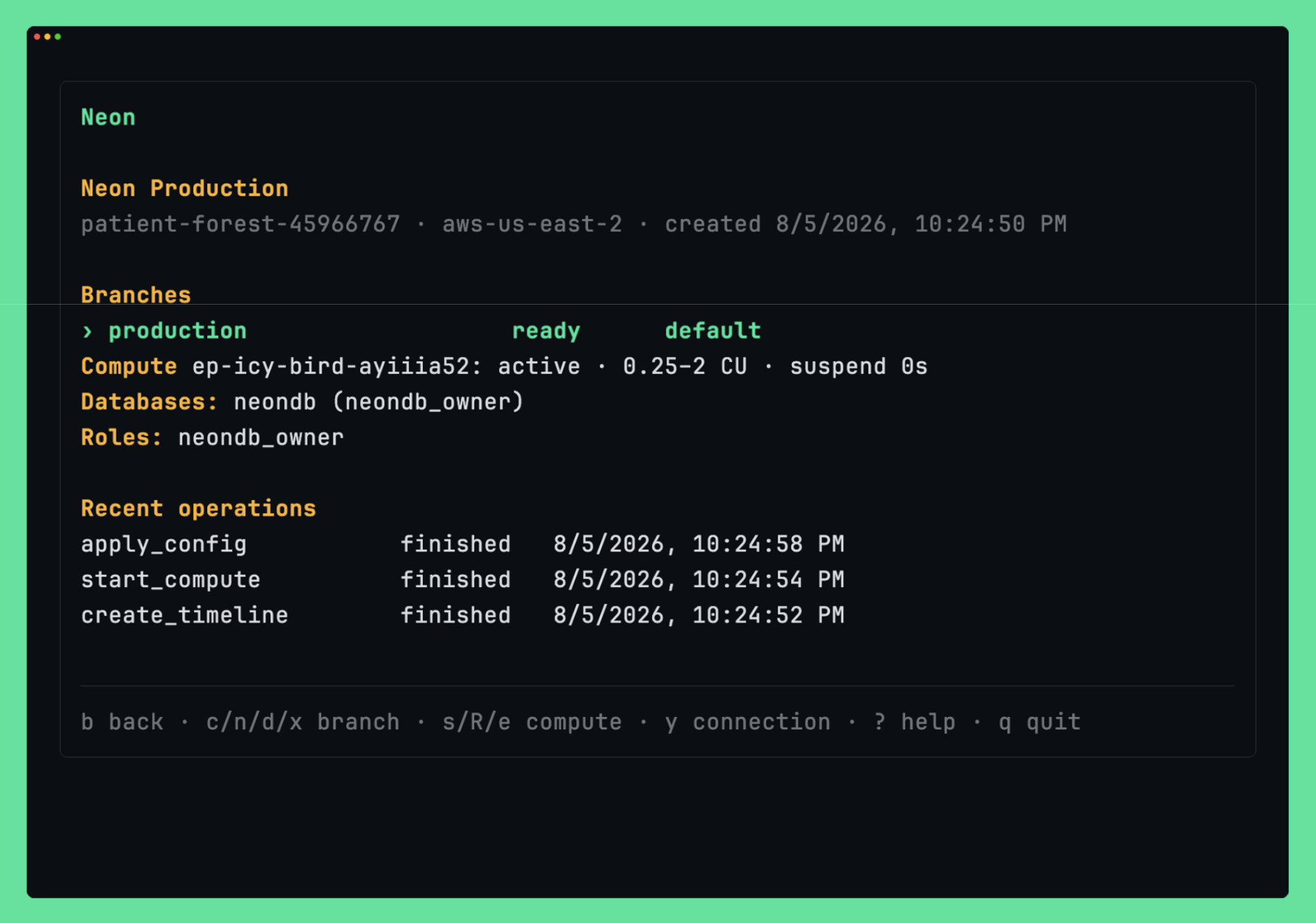
Typing c creates a branch, n renames it, d deletes it, and x resets it from its parent.
Type s to start or suspend the compute, R to restart it, and e to edit min CU,max CU,suspend seconds in place. Type y to retrieve a connection string. The dashboard masks it on screen and puts the real one on your clipboard.
How to get going
Instructions also live on the repo
Prerequisites
- Herdr 0.7.0 or newer
- Node 22 or newer
- macOS or Linux
Install
This install command clones the repo, shows you a preview of the source and the commands it's about to run, runs the build steps from the manifest, then registers the plugin:
herdr plugin install neon-solutions/neon-herdrAdd --yes for a noninteractive install and --ref to pin a revision. If you would rather read the code first, herdr plugin link . takes a working tree you have already built.
Sign in
To open the dashboard, run:
herdr plugin action invoke neon.herdr.dashboardIt opens on a "Not connected" screen and stays there until you do something about it. Press a, finish the flow in the browser, and the project list loads by itself:
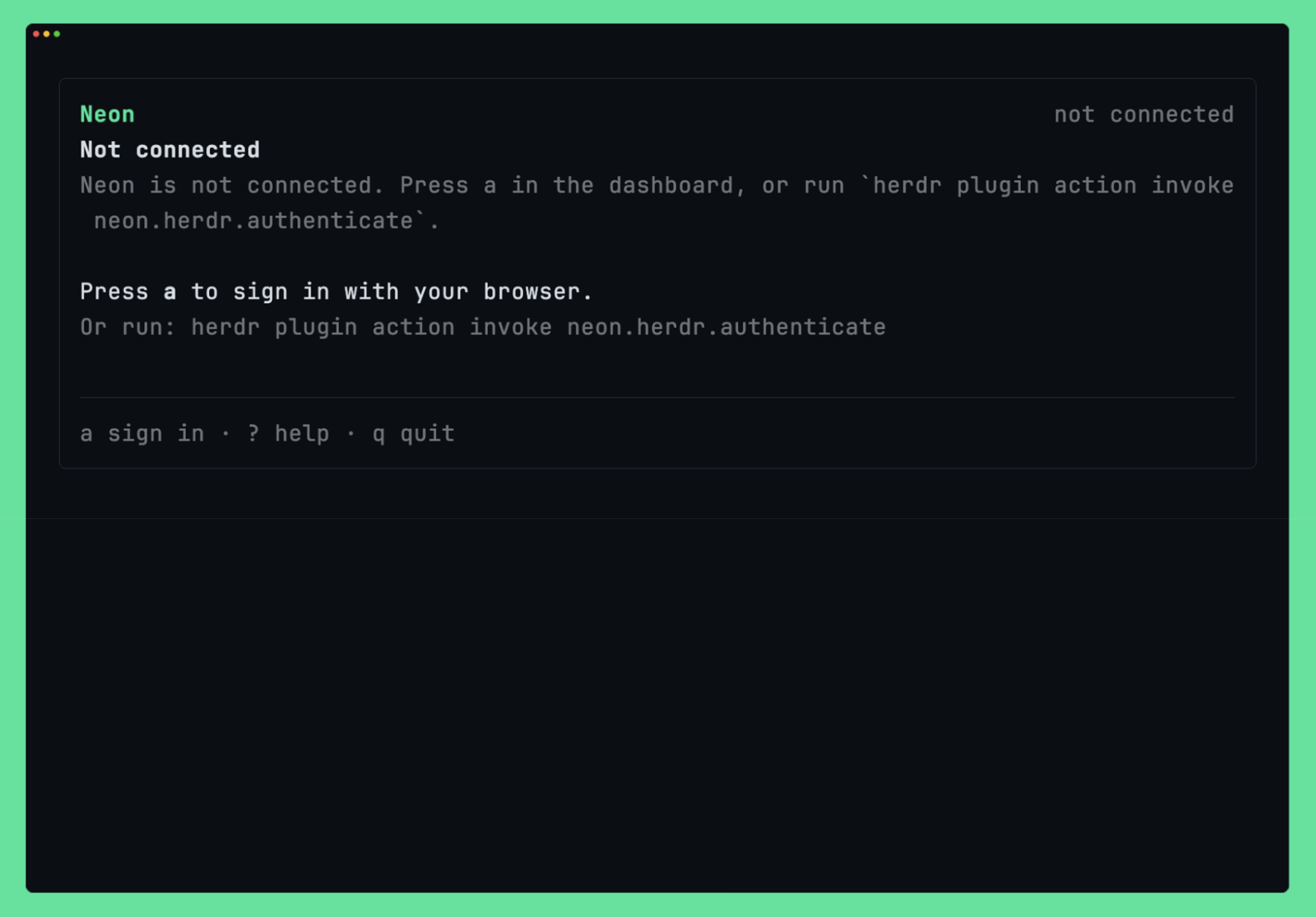
Behind that key is authorization code with PKCE against Neon's OAuth host. The only local moving part is a temporary callback listener on 127.0.0.1. Refresh tokens rotate and renew without reopening the browser, so you do this once per machine.
Once connected, the same a becomes sign out, which deletes the stored credentials and clears the cached account data.
One thing to know if you're packaging your own build: the default oauthClientId is neonctl, the public Neon CLI client, so the flow works the moment you install. Ask Neon for a dedicated client identifier before you distribute anything.
Pick where the pane opens
By default the dashboard opens as a persistent split below whatever you have focused, so your shell or editor stays visible above it. It's an ordinary Herdr pane after that: resize, move, and zoom it with the usual pane commands. Herdr plugins cannot declare keybindings, so give it one in ~/.config/herdr/config.toml. Pressing it again focuses the one you already have.
dashboardPlacement changes that:
| Value | Result |
|---|---|
| split (default) | A pane beside the focused pane, down or right via dashboardSplitDirection. |
| tab | A dedicated tab in the current workspace. |
| zoomed | A pane zoomed over the focused pane. |
| overlay | A temporary overlay that restores your previous focus and zoom when it closes. |
Configure it
You can configure it in config.json. The plugin ignores your .env file. Copy config.example.json into the directory herdr plugin config-dir neon.herdr prints and give it mode 600. Every field is optional:
{
  "orgId": "org-example-123",
  "dashboardPlacement": "split",
  "dashboardSplitDirection": "down",
  "refreshIntervalSeconds": 30,
  "pooledConnections": true
}
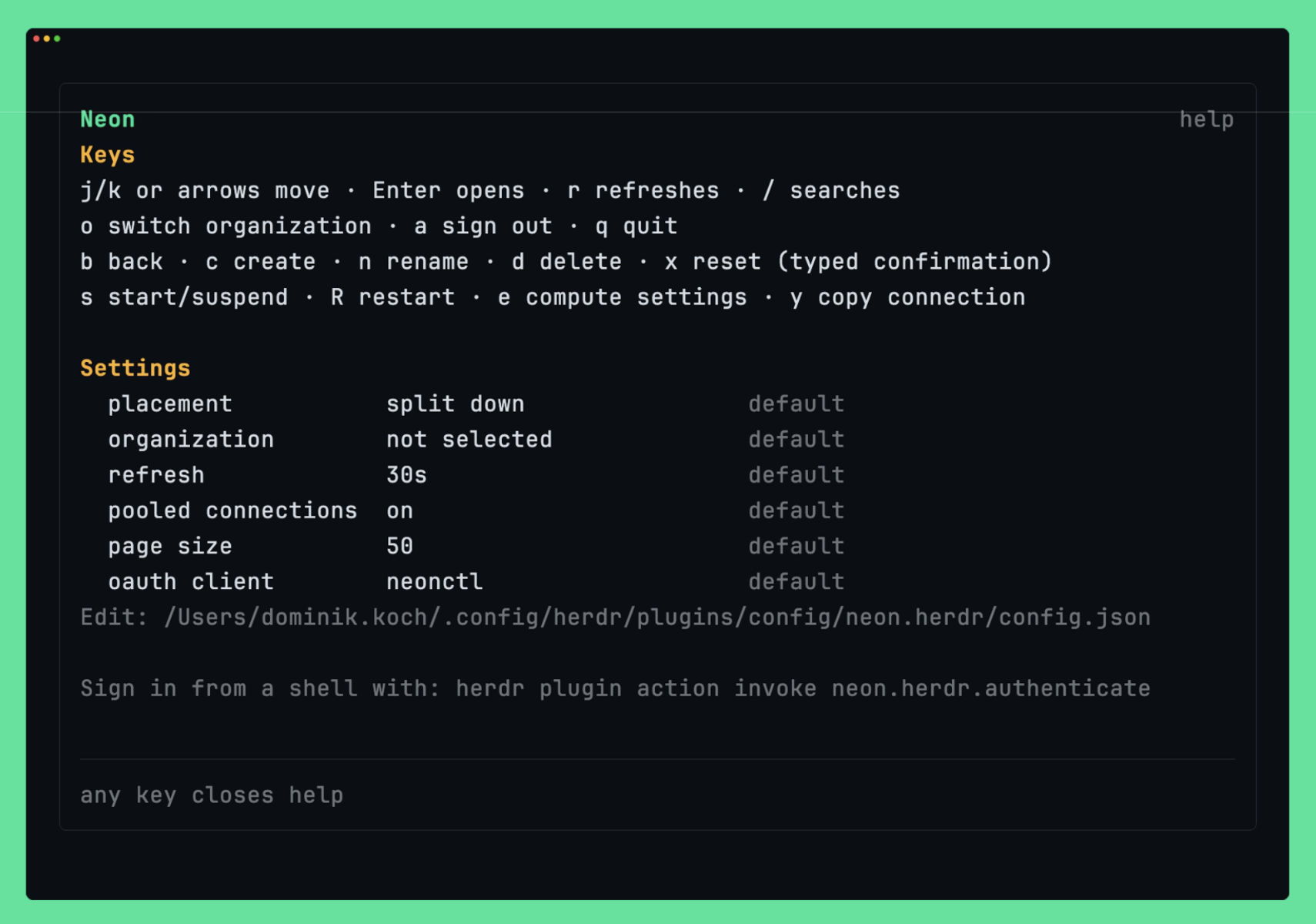
pooledConnections decides whether y copies the pooled or the direct connection string. OAuth tokens live in a restricted credentials.json next to this file.
You don't have to remember which of those you set. ? shows the settings actually in force, each tagged with where it came from, plus the exact path to edit:
Switch organizations
If your account has several organizations and you haven't pinned one, the dashboard asks which one you want and remembers the answer:
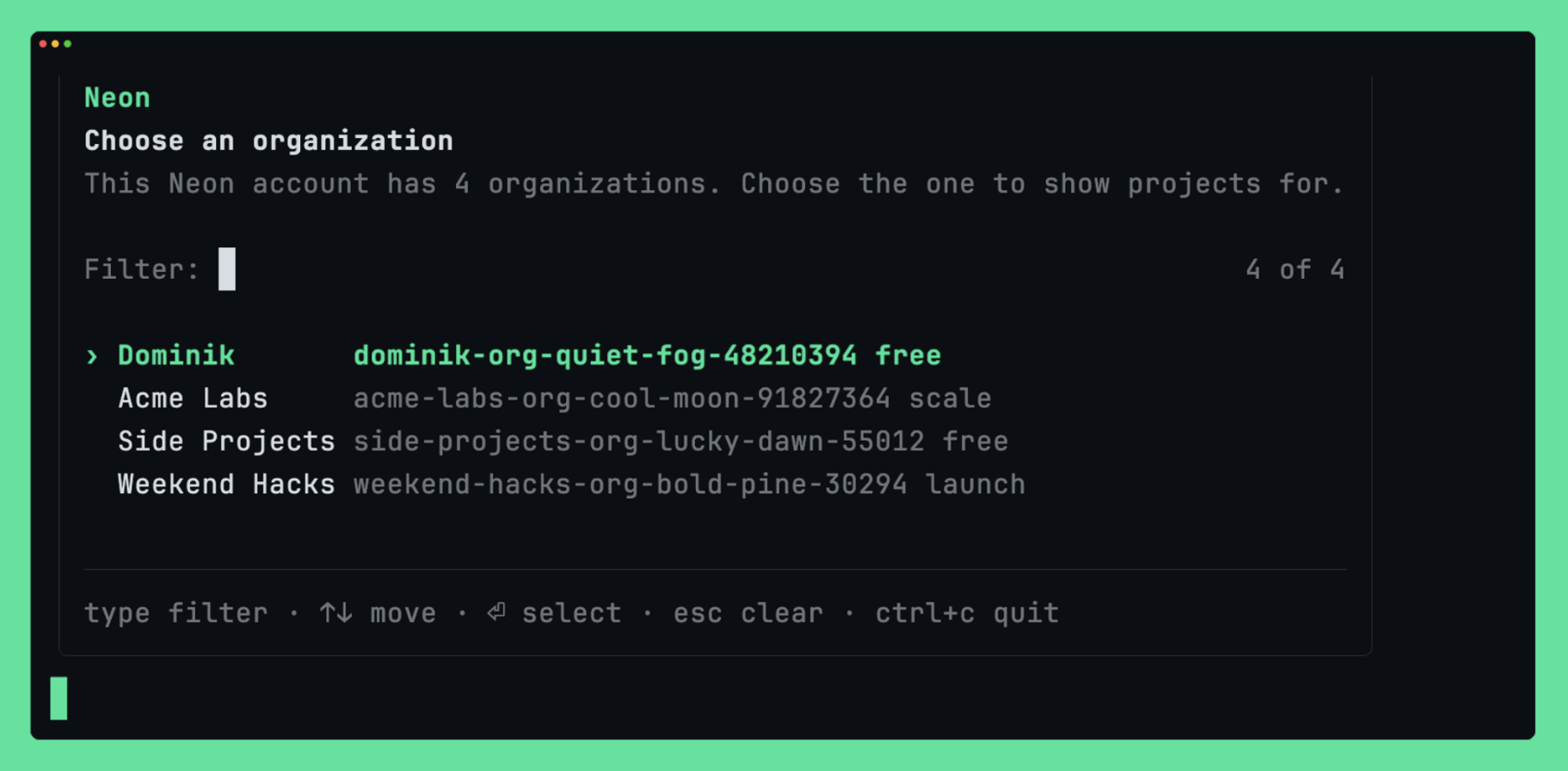
o reopens that picker and it filters by name, handle, ID, or plan as you type. Setting orgId in config.json pins it and skips the prompt.
A branch for the migration you are about to run
One of the clearest places to use this is when you're about to run a migration you don't trust yet, and you want it hitting a copy of production first. You need the copy, then its connection string, then the copy gone, without leaving the editor for a browser tab.
Your keybinding opens the pane below your editor, still on the project you were last in. / finds it, Enter opens it. Press c and name the branch after the migration file, dk/0003_quiet_daredevil here, so you know a week later what it was for. It arrives without a compute endpoint though: the footer reads no connection until you add one from the console or the Neon CLI.
Once the compute is up, y copies the branch's connection string. The masked toast is all that lands in your scrollback:
Now the part I like:
Your first attempt at the migration is wrong, as first attempts are. Press x, confirm with the branch name, and the branch is back to whatever production looks like right now. Your broken state survives under a timestamped branch, in case you want to look at what you did.
When you're done, press d, type the name, and it's gone. Pressing s suspends a compute that is still awake, so nothing keeps running after you have stopped caring about it.
The whole loop:
Try it out
herdr plugin install neon-solutions/neon-herdr
herdr plugin action invoke neon.herdr.dashboard
Issues and pull requests are welcome on neon-solutions/neon-herdr, especially about which key should do what.
If you build something with it or want to argue about your favorite keybinding, come find us in the Neon Discord!